
Getting in
The panel is the whole website's back room. Everything in this handbook happens there unless it says otherwise.
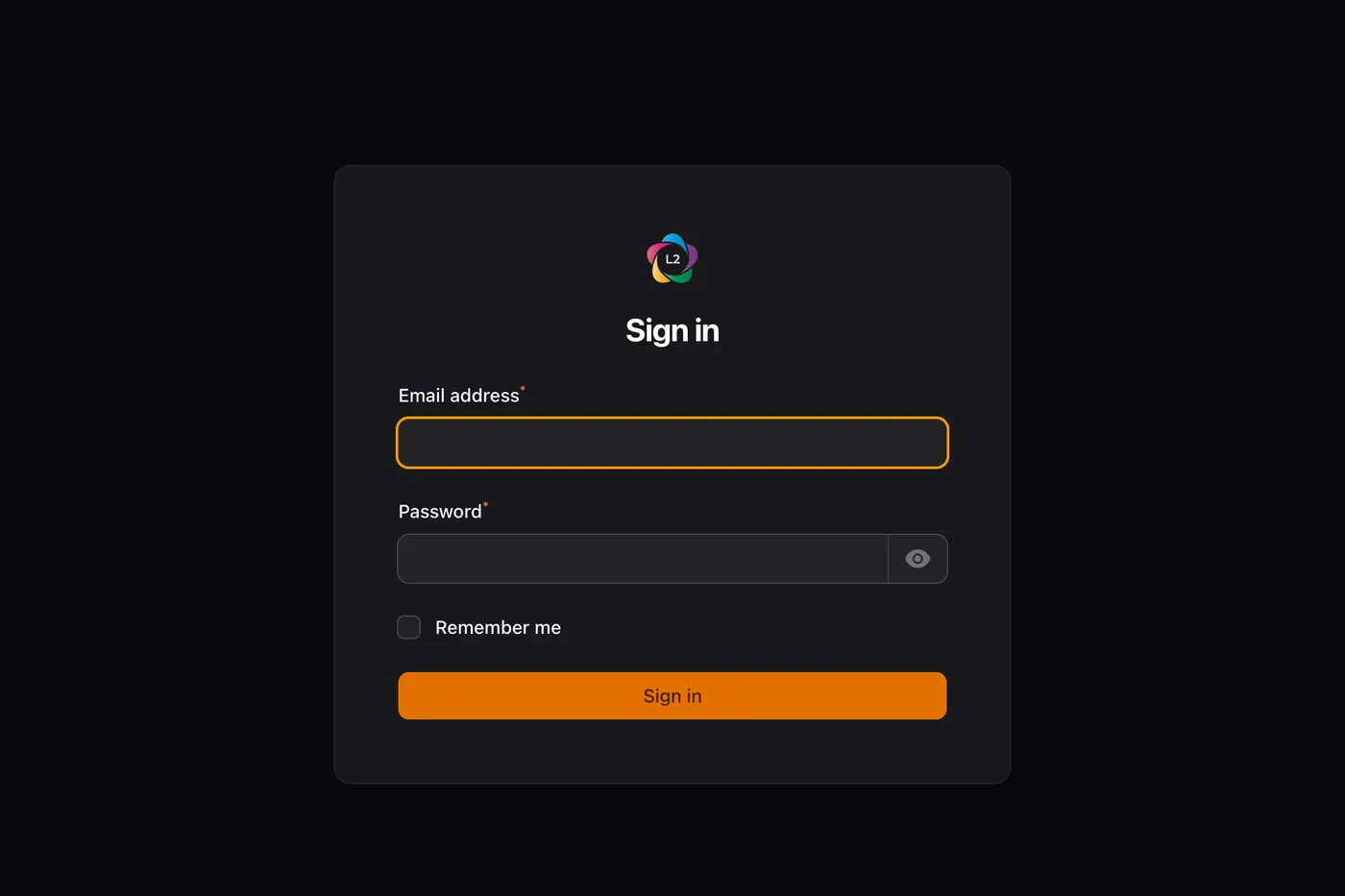
Go to www.l2icon.org/admin and sign in with your work email address. Forgotten the password? Press Forgot password? on the sign-in page and enter your email; the link arrives from webmaster@l2icon.org, works for an hour, and lands in spam the first time often enough that it is worth looking there.
There is a second copy of the website at l2icon.sawangville.dev, used for testing changes before they go live. It looks the same and has its own accounts, but nothing done there ever reaches the real website: an event created there does not exist, and an edit saved there does not appear. If a change you saved is not showing, check the address bar first.
The code from your phone
After your password, the panel asks for a six-digit code. You set this up once, the first time you sign in after 24 September 2026 — you cannot reach the panel until you have.
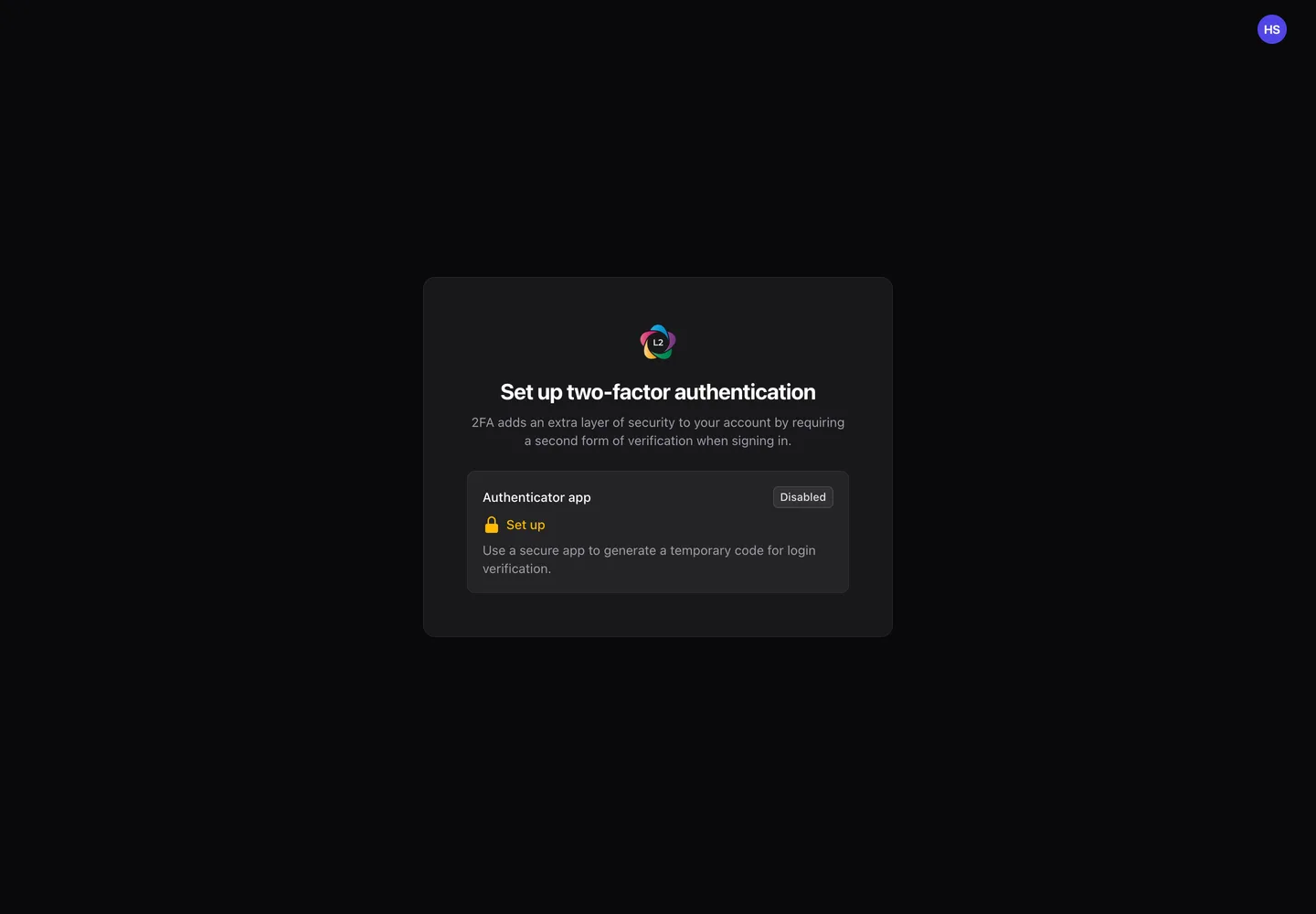
You are given eight. They are the only way back in if your phone is lost or replaced, and each one works once. Put them wherever your team keeps passwords — not in an email to yourself. Without them, getting you back in means an engineer editing the database.
You are asked for a code when you sign in, not on every page, and a sign-in lasts a working day. In practice that is once each morning.
Three accounts can open this panel, and between them they can read every delegate's name, email and phone number, and change the bank account card payments are settled into. A password on its own was the whole of the defence.
What you can see depends on your role
Everyone gets the menu for their own job and nothing else. If a section named below is missing from your sidebar, that is why — ask an administrator rather than looking for it.
| Role | Can do |
|---|---|
| Administrator | Everything, including staff accounts, payments, email and branding. |
| Event manager | Events, agendas, speakers, organisations, venues, tickets and promo codes. Can read bookings but not change money. |
| Content editor | The homepage, page wording, posts, galleries, videos, testimonials, downloads and the team page. Reads events but cannot change them. |
| Registration desk | The check-in screen, and the registrations for the event they are working on. |
| Finance | Bookings, payments, refunds and the sales figures. |
| Registration manager | Runs registrations and nothing else: every booking and delegate — name changes, moving a seat, confirming transfers, invoices, cancelling, recording refunds, exporting, check-in — and the enquiries from the website. Cannot see events, tickets, the website's pages, settings or staff accounts. |
The sidebar, top to bottom
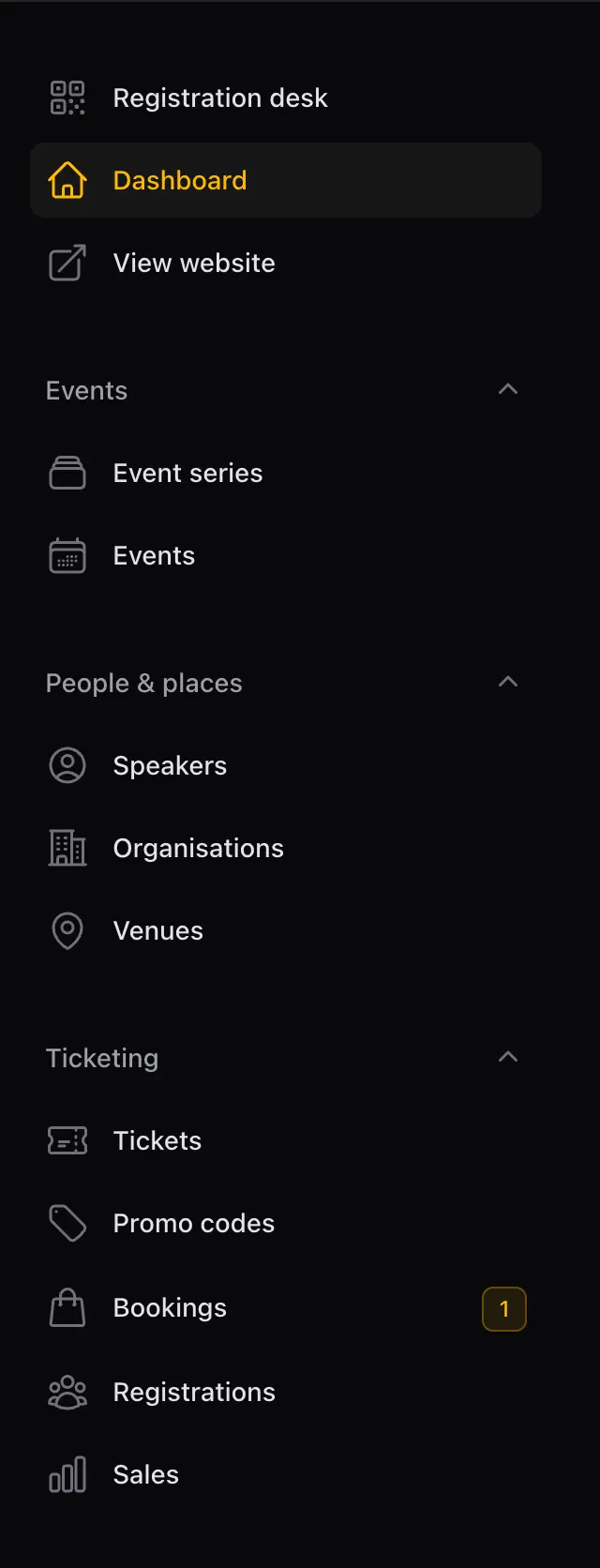
- View website and Registration desk — two doors out of the panel, at the very top.
- Events — the event series, and the events themselves. Almost all of section 2 happens here.
- People & places — speakers, organisations and venues. One record per person or body, reused by every event they take part in.
- Ticketing — tickets, promo codes, bookings, registrations and sales.
- Content — the homepage slider, page wording, posts, headline figures, galleries, videos, testimonials, downloads and the team.
- Enquiries & signups — contact enquiries, sponsorship enquiries and newsletter subscribers. A number beside one of these is how many nobody has opened yet.
- Administration — staff accounts, the site navigation, old address redirects, and the settings: email, payments, WhatsApp and branding. Administrators only.
The dashboard
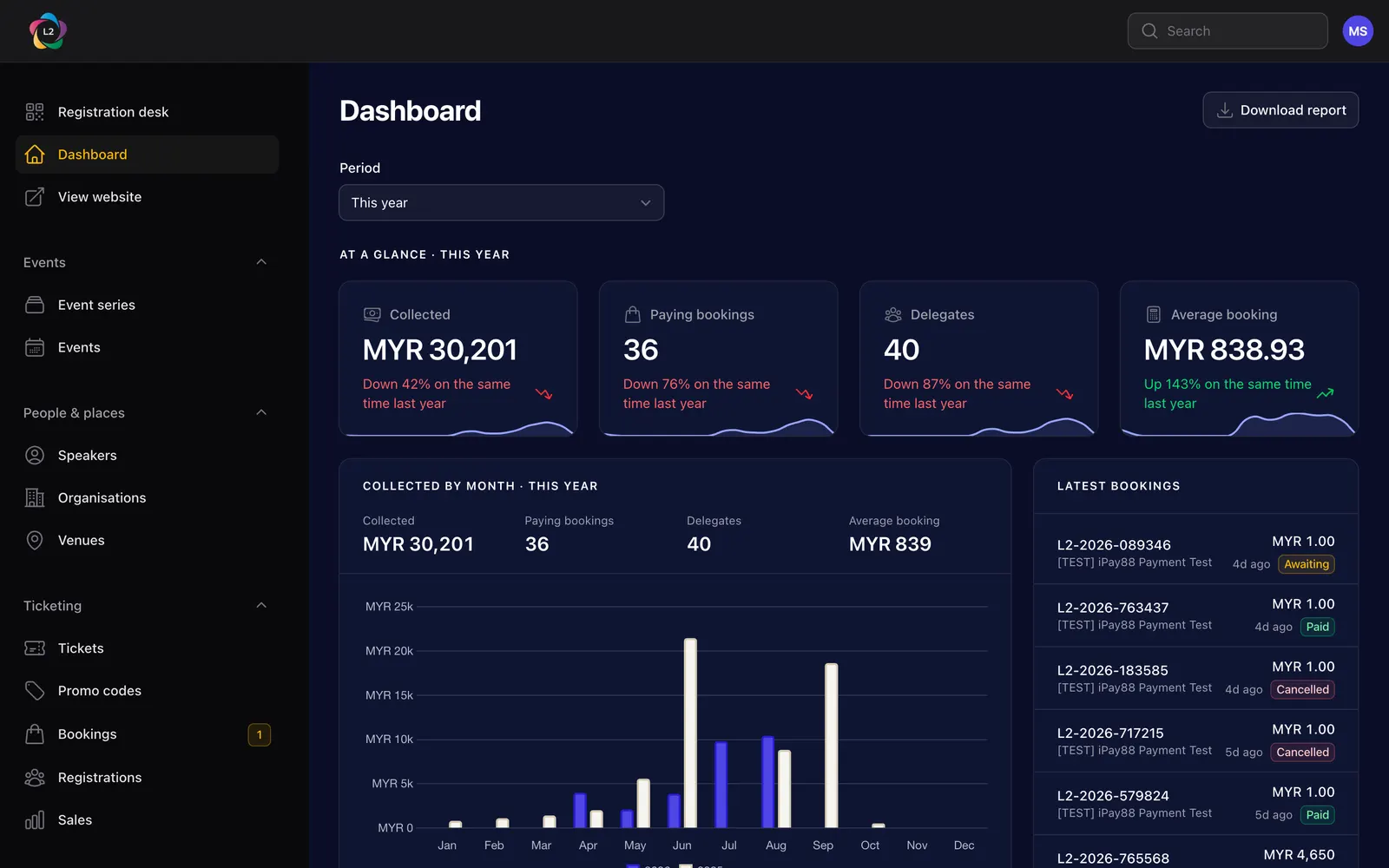
The period selector at the top changes every figure on the page, and Download PDF gives you the same numbers as a document you can send on.
Putting on an event
Seven steps, all of them from the event's own page. You do not need to visit any other screen to build a complete event.
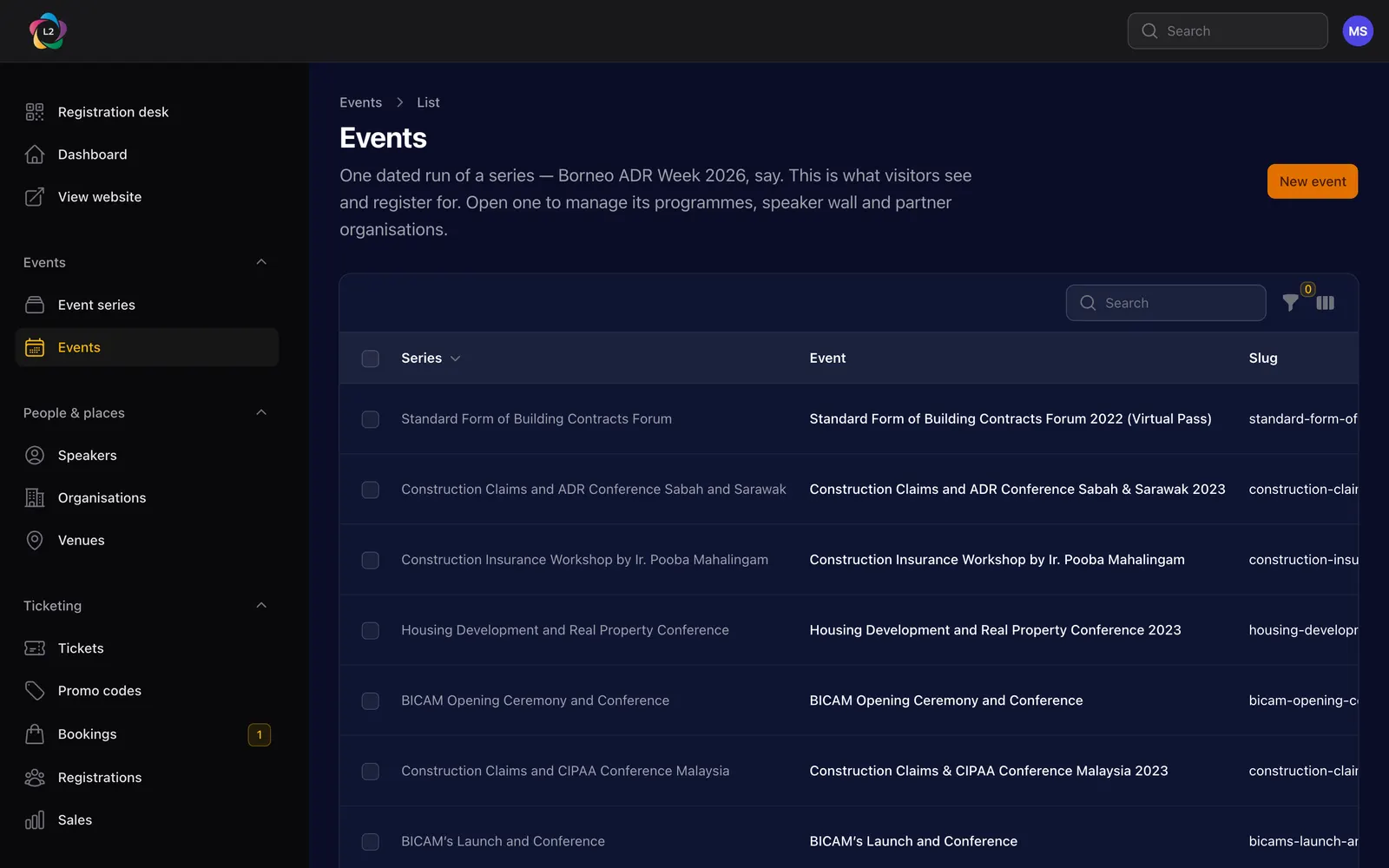
Start at Events › Events. This is the list of actual conferences — Borneo ADR Week 2026, and so on. Event series above it is the family a conference belongs to, so that 2024, 2025 and 2026 sit together; you rarely open it directly.
Create the event
Press New event. You are asked three questions and nothing else — everything the event page can show is filled in afterwards, on the event's own page.
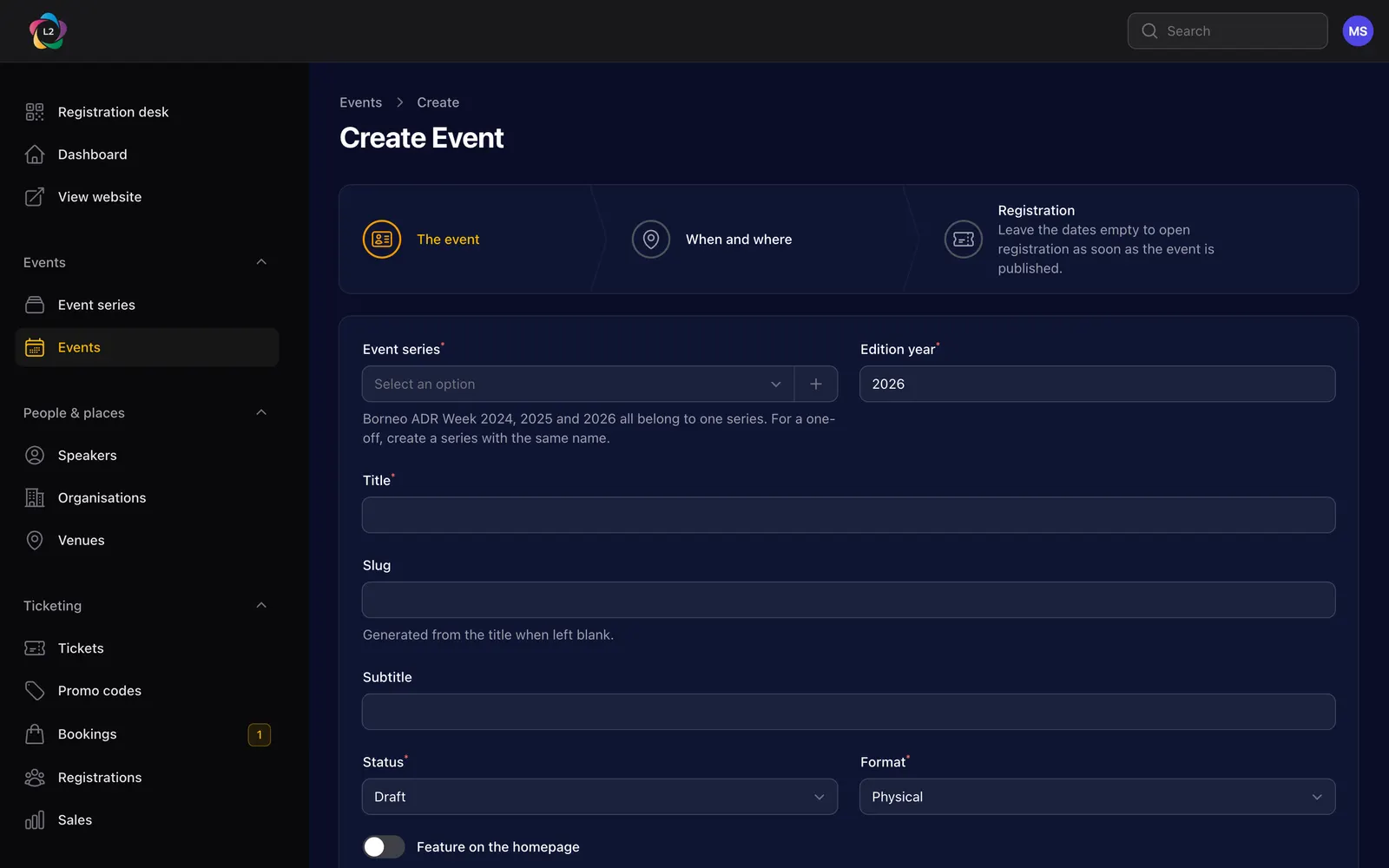
- Event series — pick the family. For a one-off conference, press + Create in that field and give the series the same name as the event; that is all it needs.
- Title — what the event is called on the website, year included: "Borneo ADR Week 2026".
- Status — leave it on Draft while you build. Nothing is public until you set it to Published.
- Format — physical, virtual or hybrid. It decides whether the page shows a venue and a map.
Step 2 asks when and where; step 3, when registration opens and closes. Save, and the panel puts you on the event's own page with its agenda ready.
Write the agenda
Scroll past the form to the tabs at the bottom of the event page and stay on Agenda.
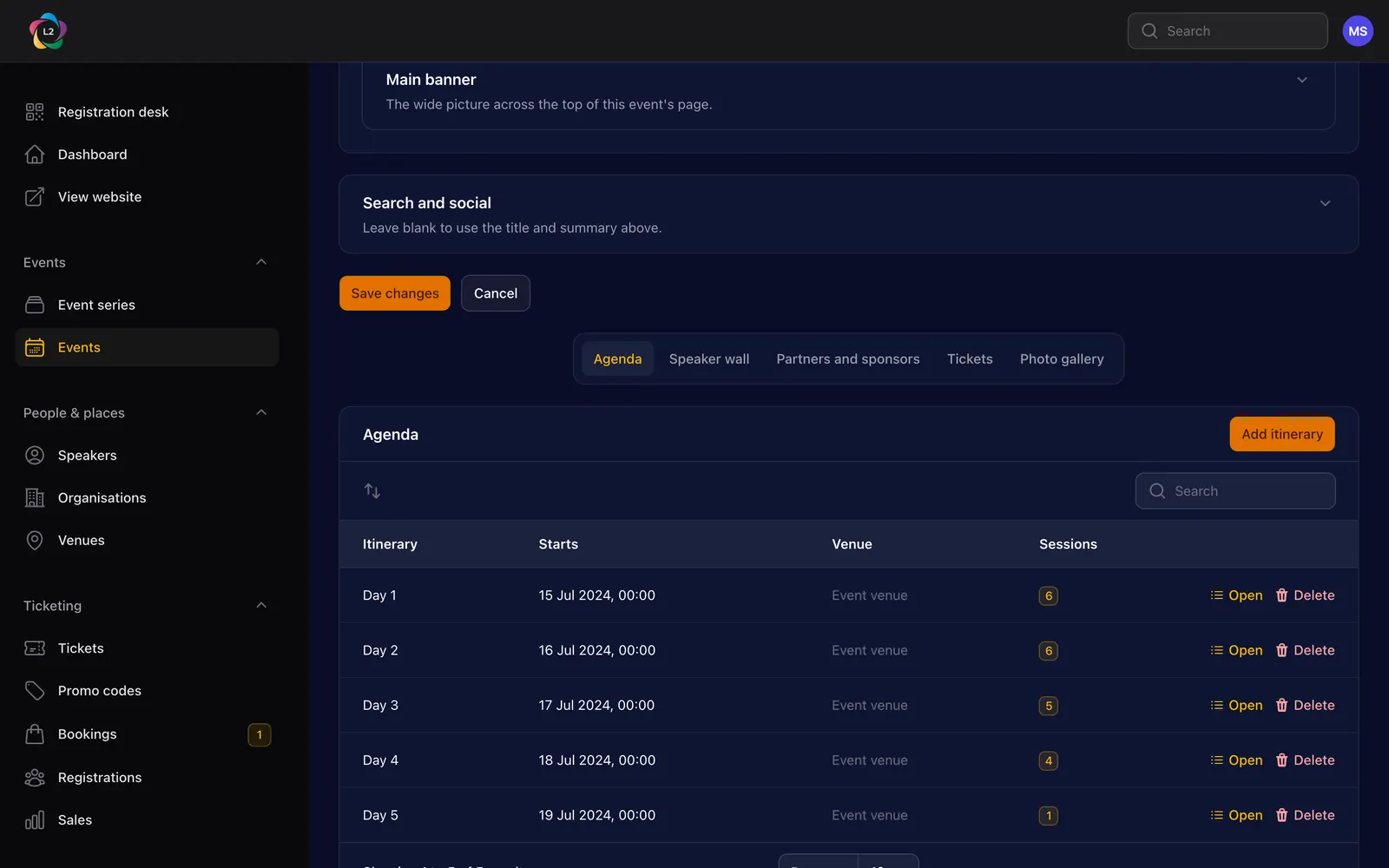
An itinerary is a day of the event. Press Add itinerary and the day is already chosen for you — the first one you have not used yet.
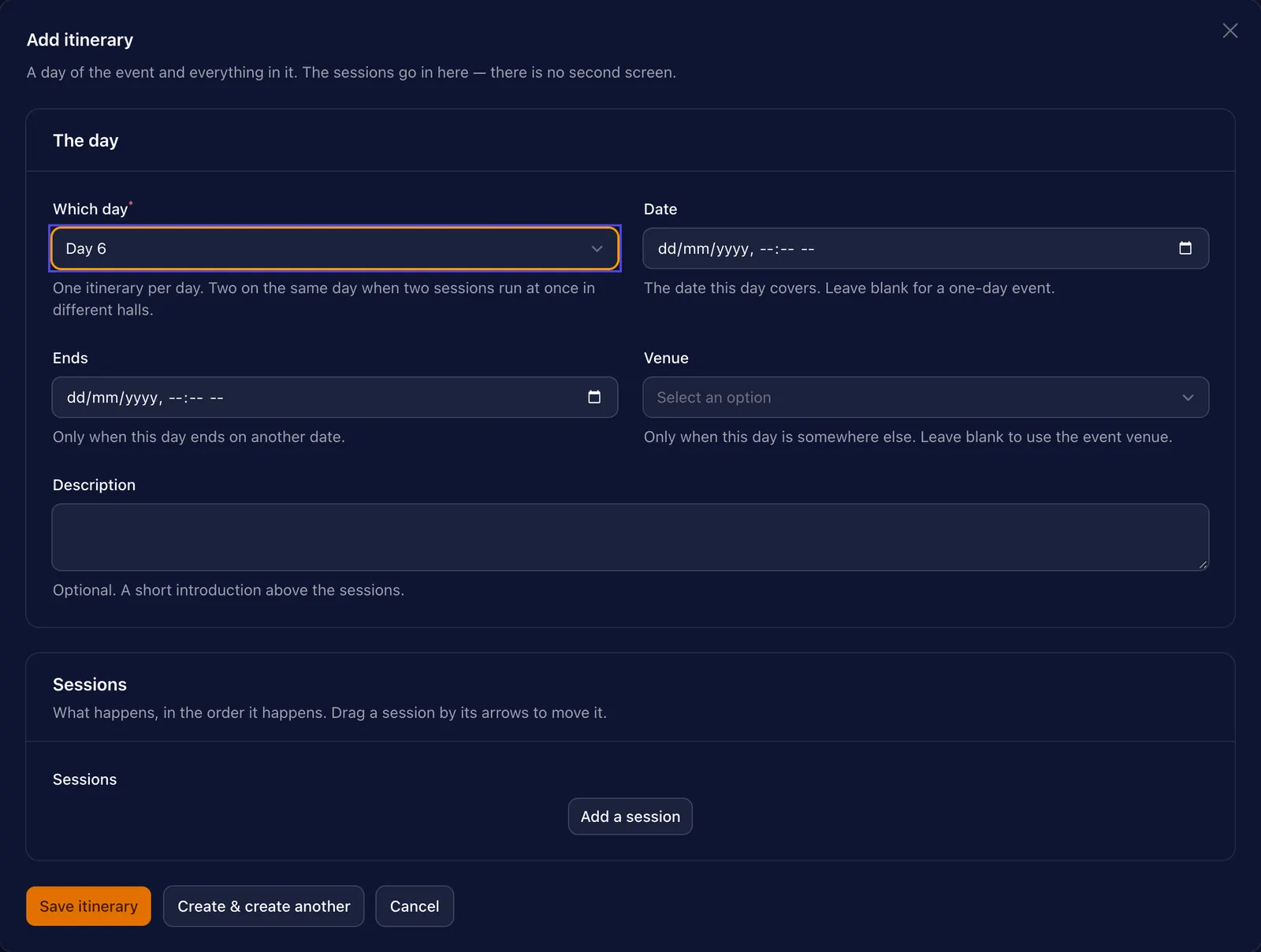
Then press Add a session once per thing that happens — registration, the opening, each panel, lunch, the closing. Sessions are numbered by their position, so dragging one up renumbers the rest.
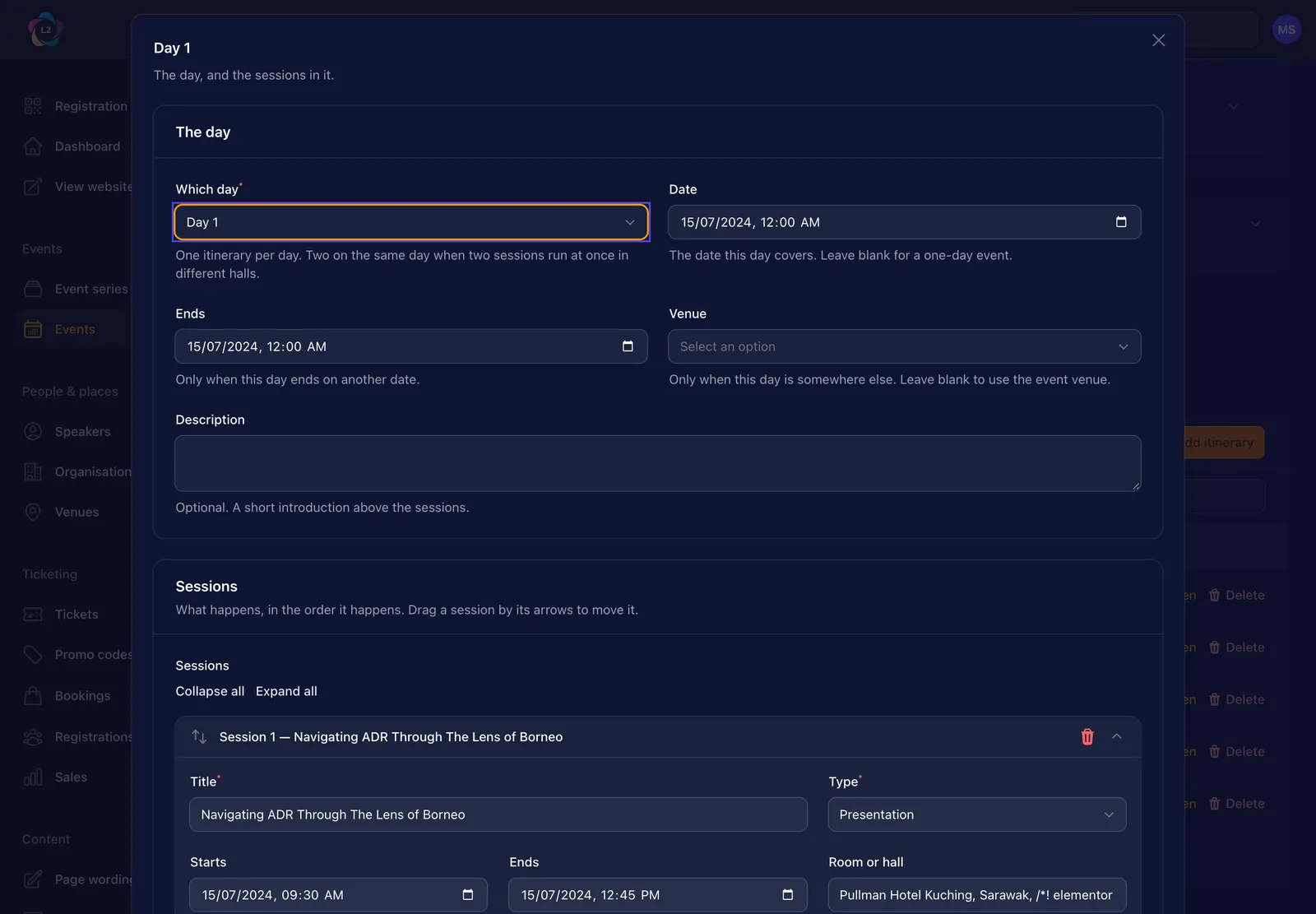
- Type decides how the session is drawn on the page — a break and a keynote do not look alike.
- Room or hall is only needed when the event runs in more than one room.
- Who is on it — add each speaker and say how they are billed: speaker, moderator, chair or panellist. Somebody the site has never heard of can be created right there.
Add a second itinerary for that same day, choose Something else in the day list and give it a name — "Young practitioners track". Both appear on the page, side by side.
Check the speaker wall
The Speaker wall tab is the block of faces on the event page. Everyone you put in the agenda is here already — adding a speaker to a session puts them on the wall for you.
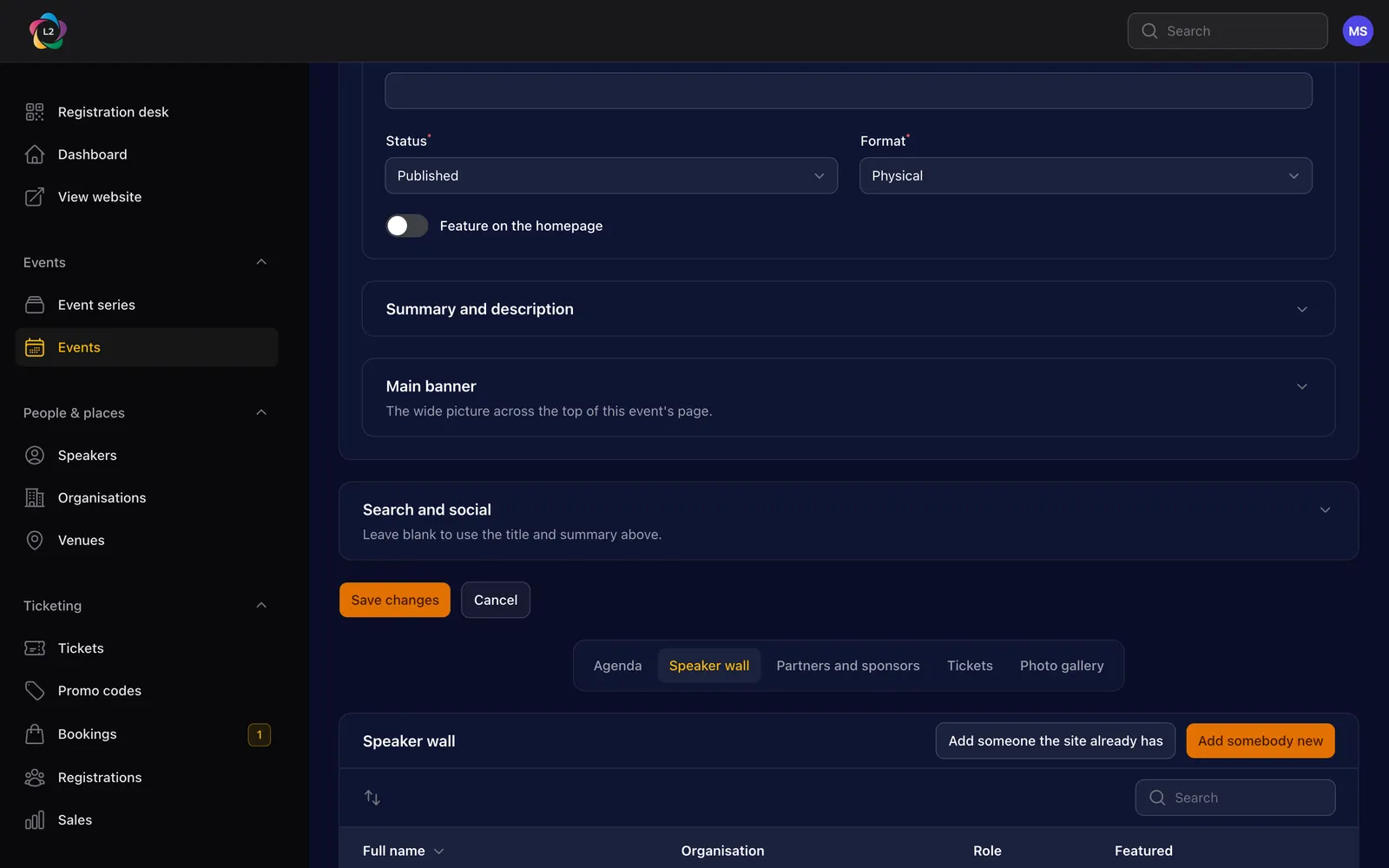
Three things you do here that the agenda cannot:
- Add somebody who never appears in the running order — a guest of honour, or whoever gives the welcome address.
- Change how somebody is billed for this event. The wall accepts keynote, guest of honour and welcome address, which an agenda item does not.
- Turn on Show larger on the speaker wall for the names a visitor should see first.
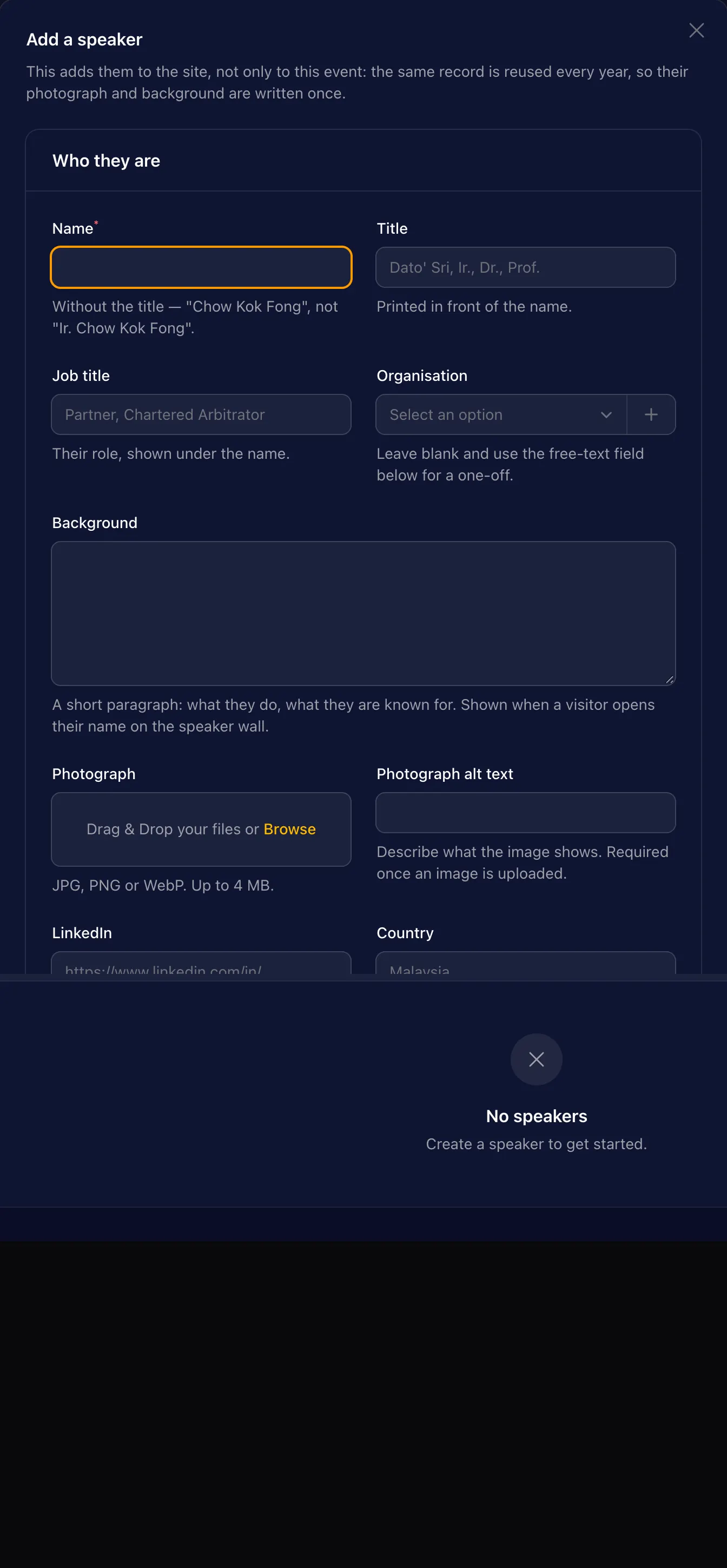
That is deliberate: the wall carries people who never appear in a running order, and a deleted session must not quietly delete a name. Take somebody off the wall on this tab.
Credit the partners and sponsors
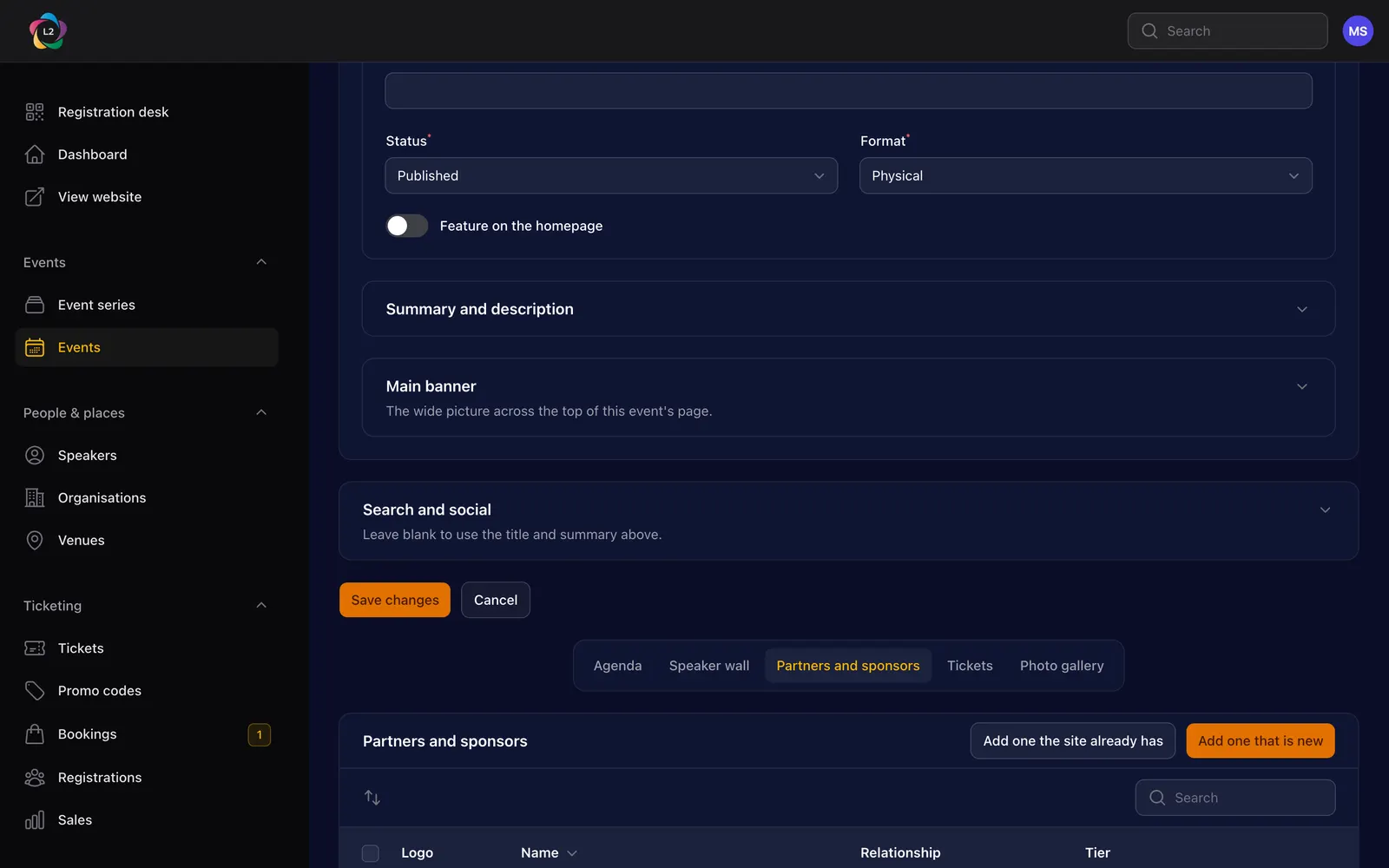
Two buttons, and the difference matters:
- Add one the site already has — search the organisations already on the site. Use this whenever you can: it keeps one logo and one spelling everywhere.
- Add one that is new — for a body the site has never worked with. You give the name and upload the logo once; every future event can then pick them from the list.
What an organisation is — organiser, co-organiser, secretariat, sponsor, supporting organisation, media partner, endorser — is decided per event, so the same body can co-organise one year and sponsor the next without a second record. For a sponsor, the level (platinum down to exhibitor) sets how large the logo is printed.
The page prints the logo instead of the name, so a mark with no wordmark leaves a reader unable to tell who it is. Transparent PNG on a light background works best.
Set up the tickets
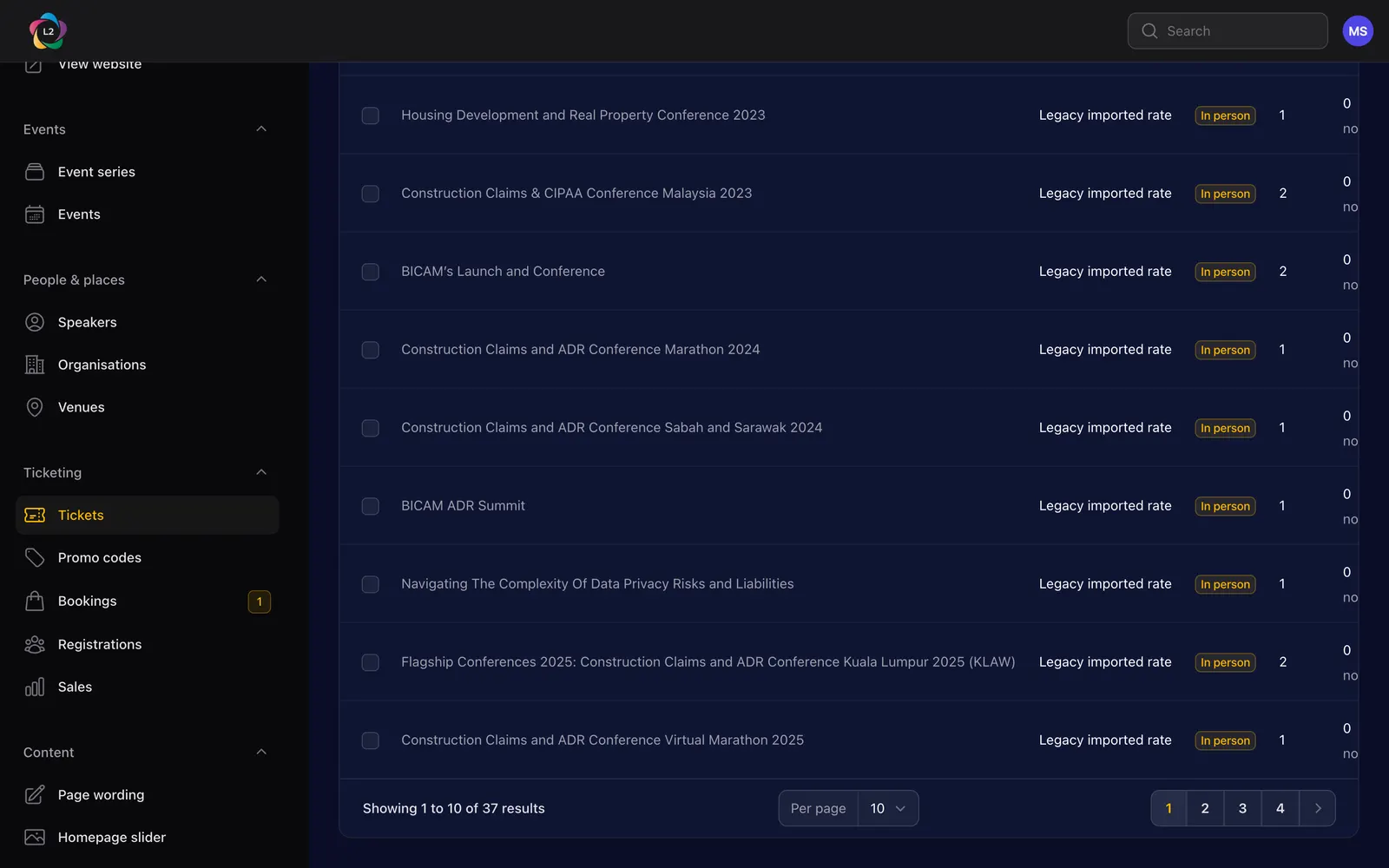
Press Add a ticket, give it a name a delegate would recognise ("Delegate pass", "Student rate", "Table of ten"), then press Set prices on its row to add the rates and the dates each one runs between.
The Tickets list says not shown until priced against any ticket in that state, and the dashboard's Needs action panel lists them too.
Ringgit or dollars
Each ticket is priced in one currency, set in the Showing section of the ticket's own page.
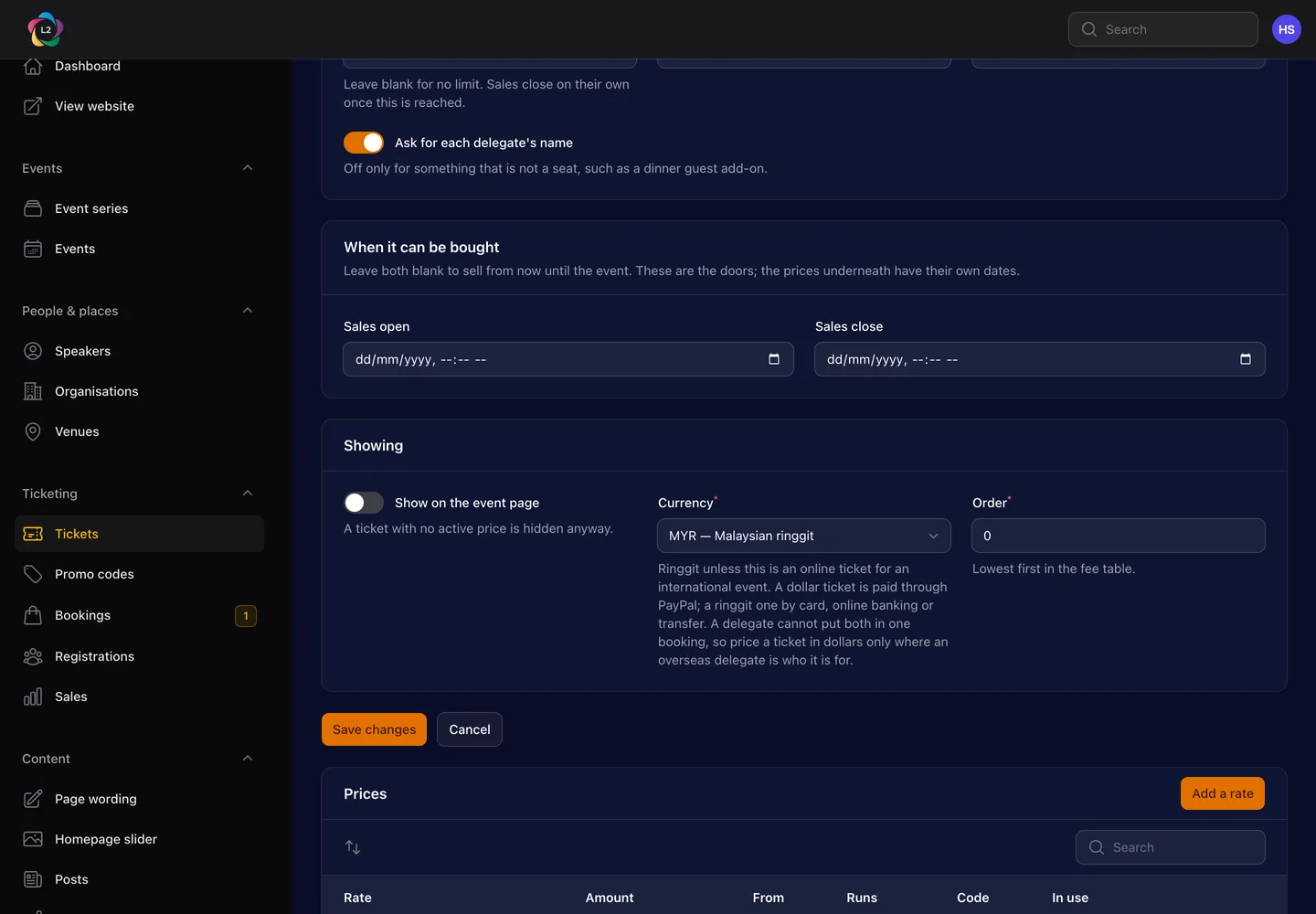
The currency decides how the ticket can be paid for, because the accounts decide it: a ringgit ticket is paid by card, online banking or bank transfer, and a dollar ticket through PayPal. The delegate is offered whichever one fits.
An event may list both. The Marathon does — a ringgit pass and a dollar pass, side by side on the same fee table.
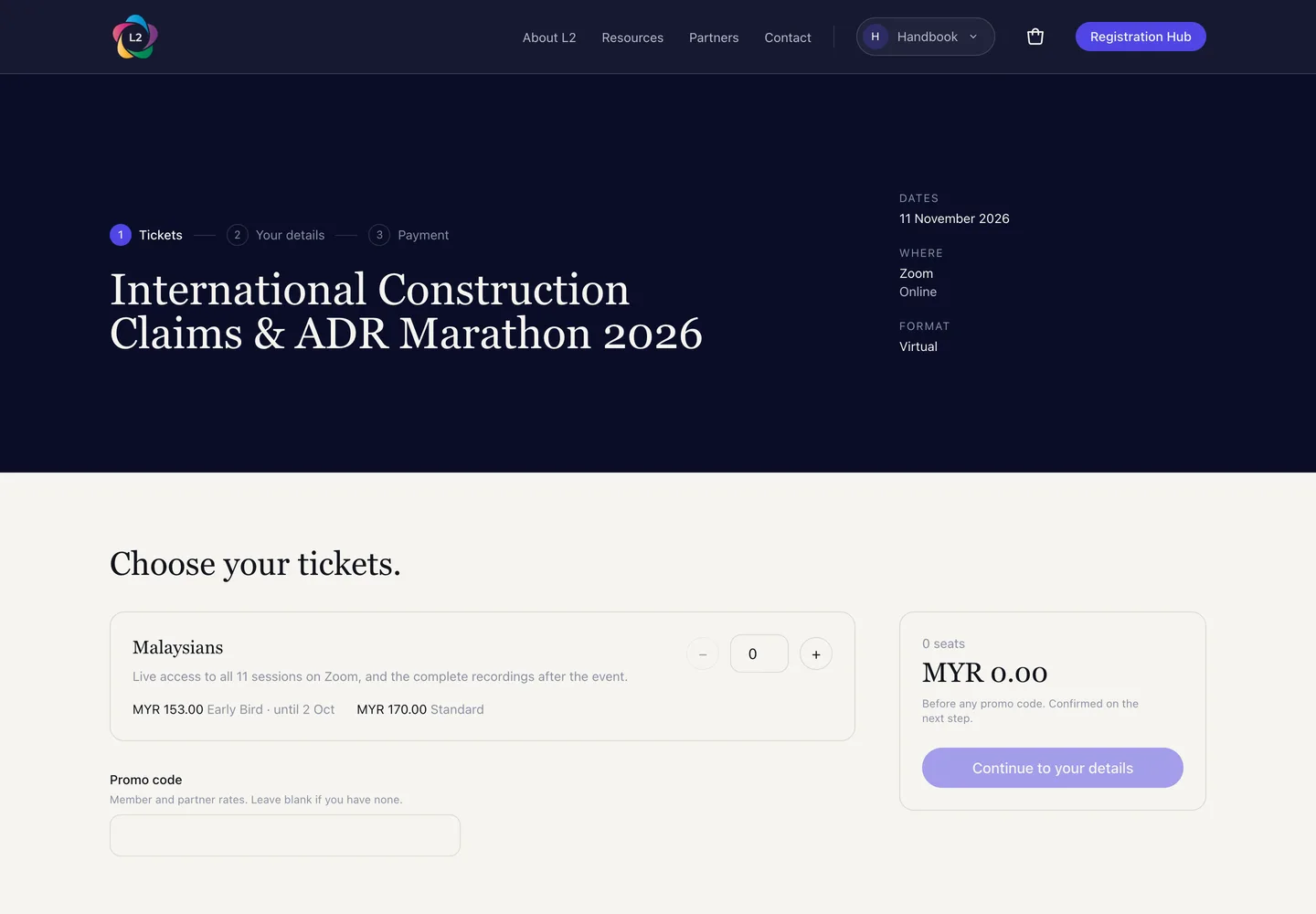
One booking is one payment and a payment has one currency. Choosing a ringgit ticket and a dollar ticket together stops the fee table with a message saying so — which is the right place for it, rather than three screens later after they have typed everybody's name.
Discounts live in Ticketing › Promo codes: a code, a percentage or a fixed amount, an expiry, and a limit on how many times it may be used.
Decide what the page shows
The What shows on the page tab on the event form is a switch per block — agenda, speakers, fees, brochures, venue map, testimonials, photographs, videos and the rest. Turn off what this event does not have rather than leaving an empty heading on the page.
The Search and social section below the tabs sets what Google and WhatsApp show when the page is shared. Leave it blank and the site uses the title and summary you already wrote.
Publish
Back on the Details tab, set Status to Published and press Save changes. The event appears on the homepage, in the Registration Hub and in the sitemap within the minute.
Registration opens and closes on the dates in step 3 — you do not have to come back and switch anything on the day.
Open last year's event and press Clone edition. It copies the agenda, the speakers, the organisations and the tickets into a new draft, and you correct the dates from there.
After the event
Photographs, and anything else that only exists once the conference has happened.
Photographs
The Photo gallery tab on the event holds albums — one per occasion, so a three-day conference might have a day-one album, a gala dinner album and a site-visit album.
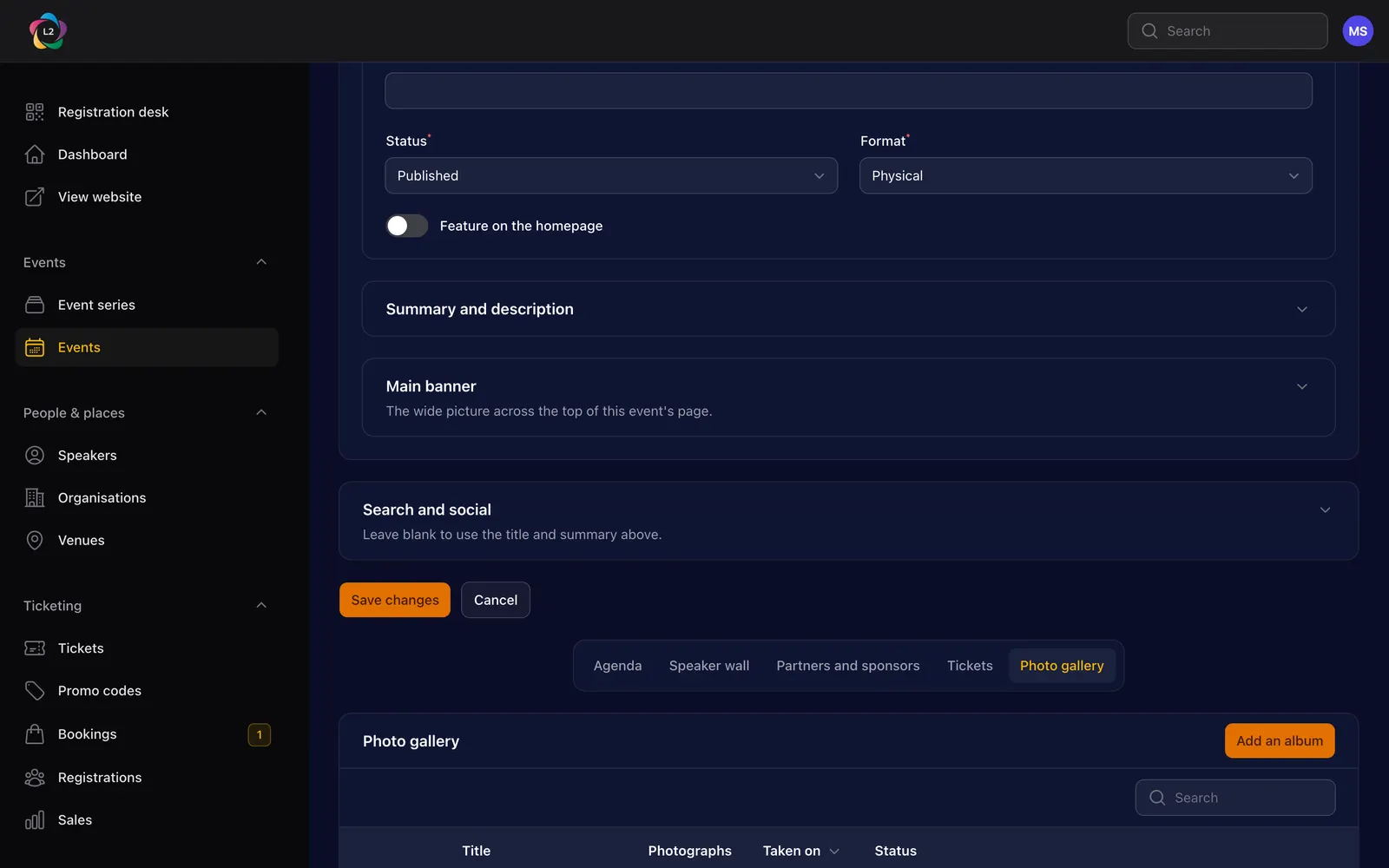
Press Add an album, name it, and drag in as many photographs as you like at once — up to sixty per go.
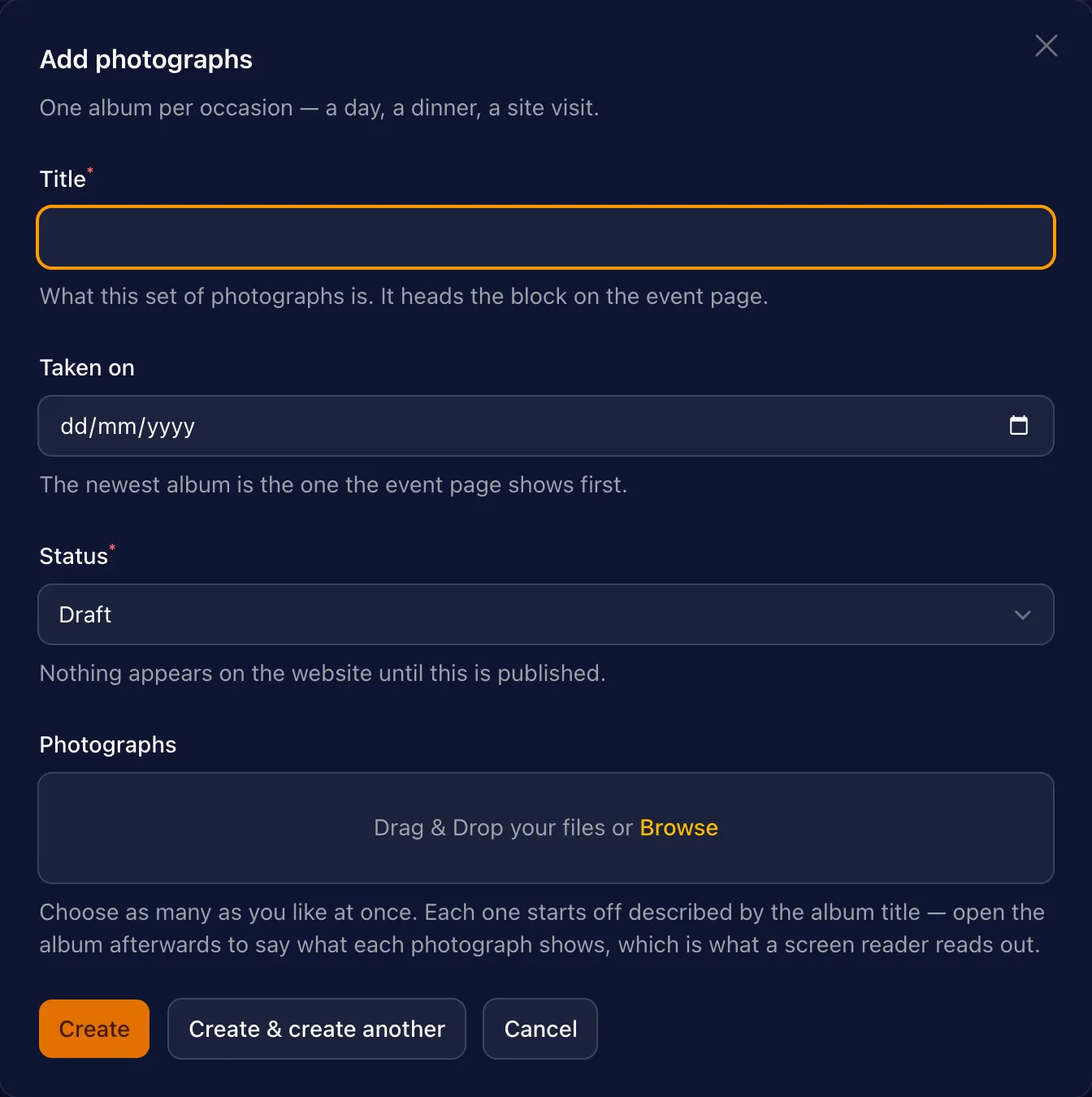
Every photograph needs a description — it is what a blind visitor's screen reader reads out, and what shows if the image fails to load. A bulk upload starts each one off with the album's title, which is true but not useful, so open the album afterwards with Describe and reorder and write what each picture actually shows. The first photograph in the album leads the block on the event page.
Nothing is public until the album's status is Published.
Brochures, reports and recordings
PDFs go in Content › Downloads and are attached to an event; they appear under the event page's brochure block and in Resources. Recordings go in Content › Videos as a YouTube or Vimeo address — the site handles the player.
The rest of the website
Everything in Content, which is where the pages that are not events are edited.
The homepage slider
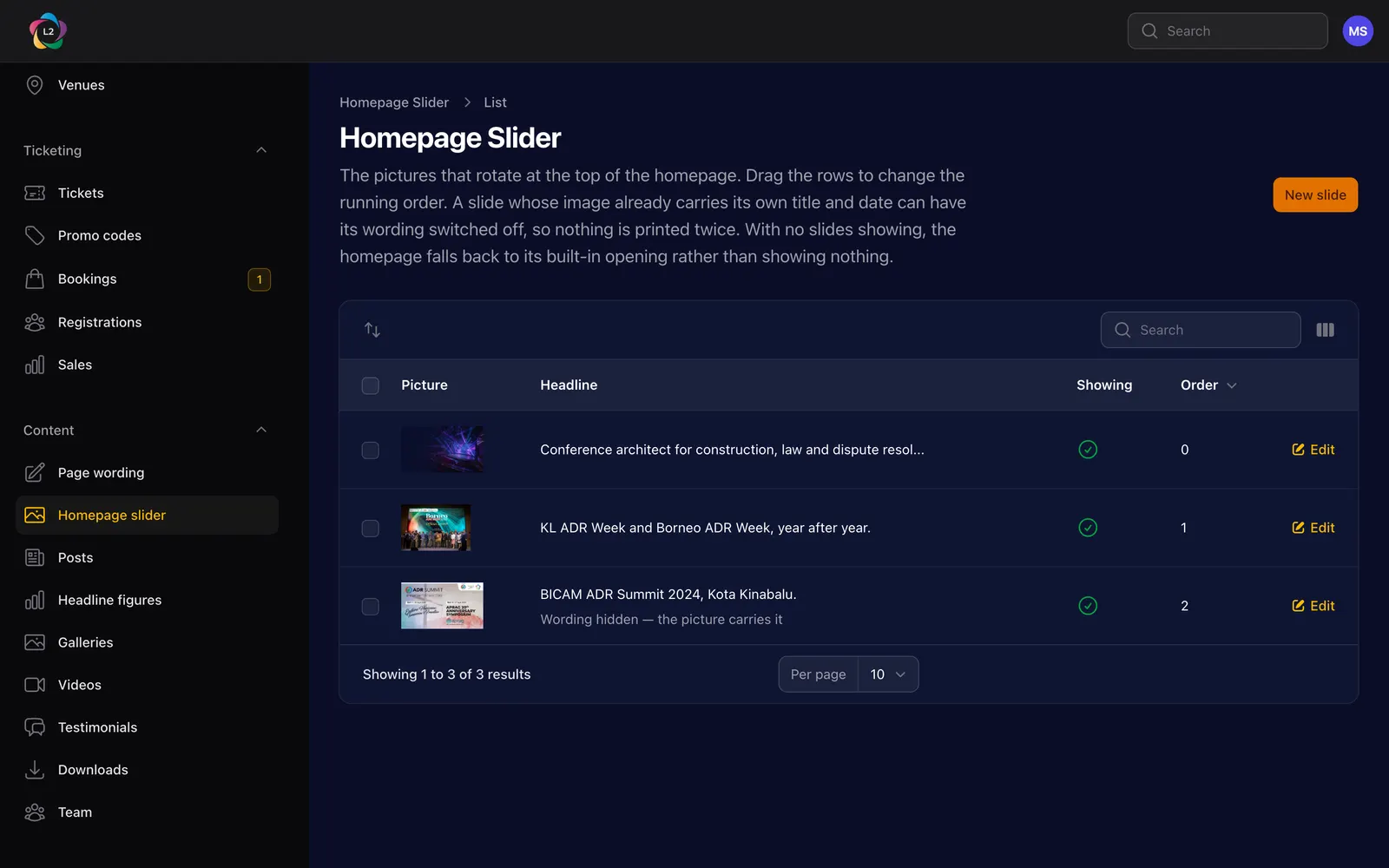
Each slide takes a picture, a small line above the headline, the headline itself and up to two buttons. Turn Show text off when the picture already carries its own title and date.
Page wording
Content › Page wording holds the standing sentences on the homepage, About, Partners, Contact, HRD Corp and Resources pages — headings, the small uppercase line above them, and the paragraph underneath. Anything you leave blank falls back to the wording the site shipped with, so you can never empty a page by accident.
Posts, testimonials, figures and the team
- Posts — articles and press releases, shown in Resources.
- Testimonials — a quote, who said it, and which event it belongs to.
- Headline figures — the "150+ conferences, 10,000+ delegates" numbers on the homepage and About page.
- Team — the people on the About page.
Navigation and old addresses
Administration › Navigation is the header and footer menus: drag to reorder, and an item can point at any page on the site. Old address redirects sends an address from the previous WordPress site to wherever that content lives now, so a link in an old email still works.
The office address
The address at the foot of every page — 53-10, The Boulevard Office, Mid Valley City — opens Google Maps when clicked. It is part of the website itself rather than a setting, so ask us when it needs to change. It is not the address on invoices: that is the registered address, in Administration › Payments.
Bookings and money
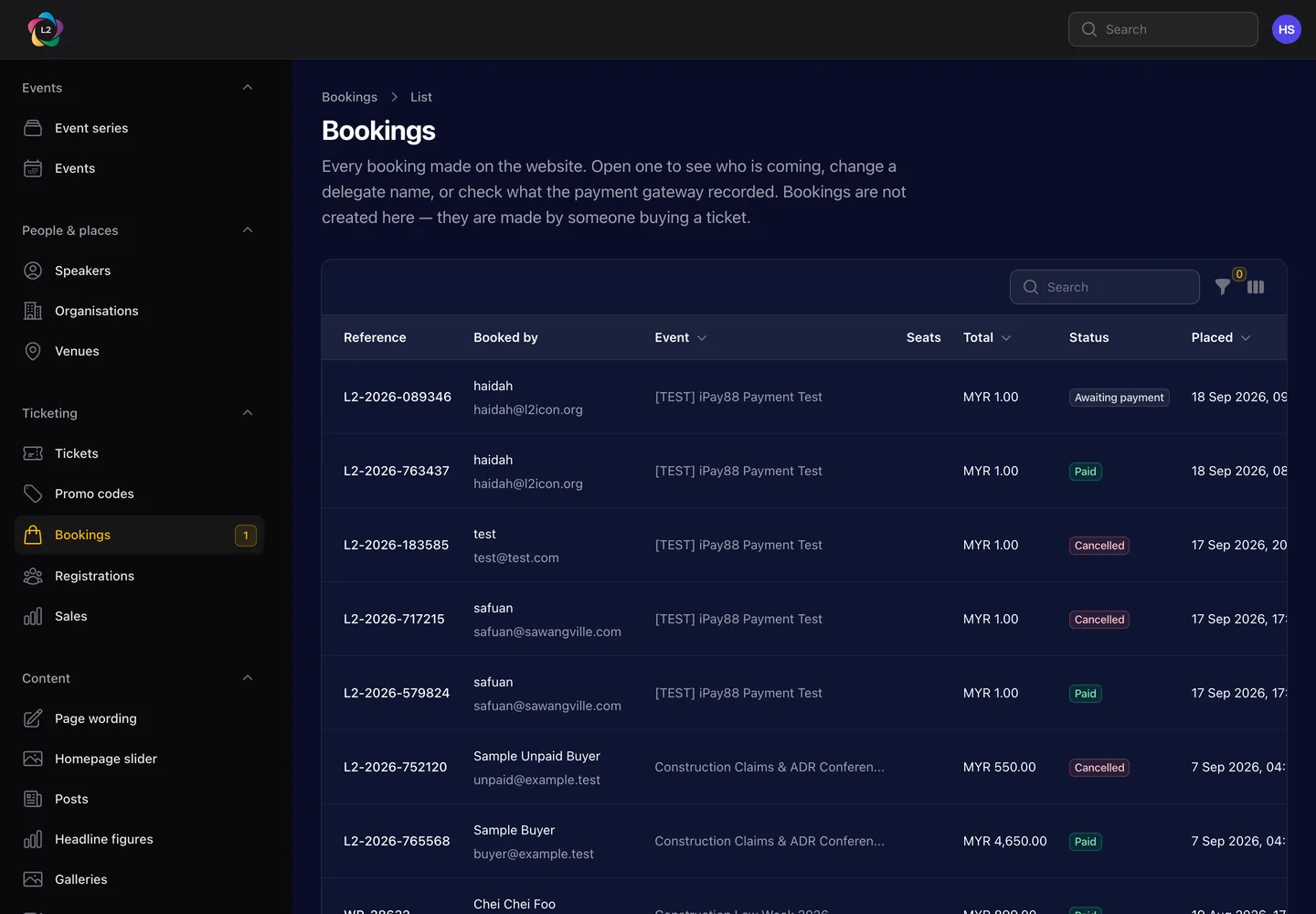
Ticketing › Bookings is every registration taken through the website.
The three ways somebody can pay
| Way | Currency | What happens |
|---|---|---|
| Card, online banking, e‑wallet | Ringgit | Through iPay88. The booking turns paid by itself, usually within a minute. |
| PayPal | US dollars | Paid with a PayPal account or a card through PayPal. The booking turns paid by itself. |
| Bank transfer | Either | They transfer and upload the receipt. Somebody here confirms it — see below. |
The delegate is not asked to choose a method in the abstract: the ticket they bought decides the currency, and the currency decides what the booking page offers them.
Which country a booking came from
Every booking made after 24 September 2026 records the country the delegate booked from — it is a required question on the booking form. Use the Country filter on the bookings list to count how many delegates are international.
Bookings placed before that date show Not asked, and the filter offers that as a choice of its own. They are not counted as Malaysian, because nobody knows.
What each status means
| Status | What happened | What to do |
|---|---|---|
| Not paid | A booking was started and no payment has been made. | Nothing. Unpaid bookings release their seats automatically after the holding period. |
| Awaiting payment | They chose bank transfer and the money has not arrived. | Confirm it when the transfer lands — see below. |
| Paid | Paid in full. Passes and the confirmation email have gone out. | Nothing. |
| Cancelled | Cancelled by the delegate or by us. | Nothing. The seats are back on sale. |
| Refunded | Money returned. | Nothing. |
A name and an email on every seat
The booking form asks for each delegate's name and email, one set per seat: three tickets means three names and three emails, and it will not go through until they are all there. The person booking can press The first seat is mine to copy their own details into the first one.
The exception is a ticket with Ask for each delegate's name switched off on its own page — something that is not a seat, such as a dinner guest add-on.
What each delegate is sent
- The person who booked gets the booking email, then the confirmation with every pass on the booking once it is paid.
- Every other delegate gets their own email once the booking is paid — "You are registered" — with their name as it will print and a link to their own pass, not anybody else's. Somebody on two seats is emailed once.
If a delegate says their email never came, open the booking, find them in the delegates list and press Send pass. Each send is written on the booking's history.
How a booking was paid
The Money section of a booking says how it was paid, in the same words as the payment gateway's own email:
- Paid through — the method: Touch 'n Go eWallet, Maybank2u, credit or debit card, PayPal or bank transfer.
- Transaction ID — the gateway's reference, the one to search for in the iPay88 or PayPal portal.
- Bank approval code — for iPay88 payments.
So there is no need to read the iPay88 (Adaptis) emails to find out how somebody paid; they hide half the delegate's phone number and email in any case, and the booking has all of it. The Payments panel further down the booking lists every attempt, including failed ones, with the same details.
Bookings brought over from the old WordPress site say only iPay88: the old site did not keep the method.
Emails to the desk
The website emails reg@l2icon.org twice about a booking, as the old site did:
- New booking L2-2026-… — the moment somebody books, paid or not.
- Proof of payment L2-2026-… — when a delegate uploads a bank transfer receipt. This is the one that needs somebody: check it against the statement and press Money received.
Each carries the delegate's name, email, phone, organisation, the event, seats and total, and a button that opens the booking. Replying writes to the delegate, not back to the website. They go to the same address as new enquiries — see Settings.
Confirming a bank transfer
Open the booking, find the Payments panel, and press Money received. Enter the bank reference from the statement. The booking turns Paid, the delegate's passes are generated and the confirmation email is sent — you do not send anything by hand.
If the proof of payment does not match anything on the statement, Not found records that, with a note saying what is wrong.
Invoices, passes and refunds
On a booking you can Issue invoice (once the company details are set — see Settings), Download invoice, Download passes, Resend email, Cancel booking and Record a refund. A refund asks for the amount and whether the seats go back on sale.
The money goes back wherever it came in: in PayPal, in the iPay88 portal, or at the bank. Do that first, then record it here so the booking and the accounts agree. The screen tells you which of the three it was and quotes the gateway's own reference, so you can search for the payment rather than hunting by amount and date.
Registrations
Ticketing › Registrations is the delegates themselves rather than the bookings — the list the desk works from, and the list you export for badges. A name can be changed up to the deadline set on the event, and a seat can be transferred to somebody else.
- Download CSV gives every delegate on screen — filter to one event first — with name, email, phone, organisation, job title and ticket code, to open in Excel. There is no need to screenshot bookings.
- Email delegates writes to the delegates you tick: a Zoom link, a change of room, the programme the night before. Filter to the event, tick the box at the top to select them all, then press Email delegates, and write a subject and a message. Each delegate gets their own copy beginning Dear [their name] and ending The L2 team; replies come to reg@l2icon.org. Cancelled seats are skipped, and somebody on two seats hears once. They go out over the next few minutes.
Sales
Ticketing › Sales is what has sold, per ticket, per event: how many, how much, and how much is still unpaid.
The registration desk
On the day, at the door, on a phone.
Open www.l2icon.org/checkin — or press Registration desk at the top of the sidebar. It is built for a phone held in one hand, not for the panel.
- Point the camera at the QR code on the delegate's pass; it checks them in.
- No pass? Search by name and check them in from the list.
- A pass already used says so, with the time it was first scanned.
Desk staff need only the registration desk role. It gives them this screen and the delegate list, and nothing else — no bookings, no money, no identity-card numbers.
Enquiries and the newsletter
Contact enquiries
Anything sent through the contact form lands in Enquiries & signups › Contact enquiries, and is emailed to reg@l2icon.org as it arrives. The number beside the menu item is how many nobody has opened yet.
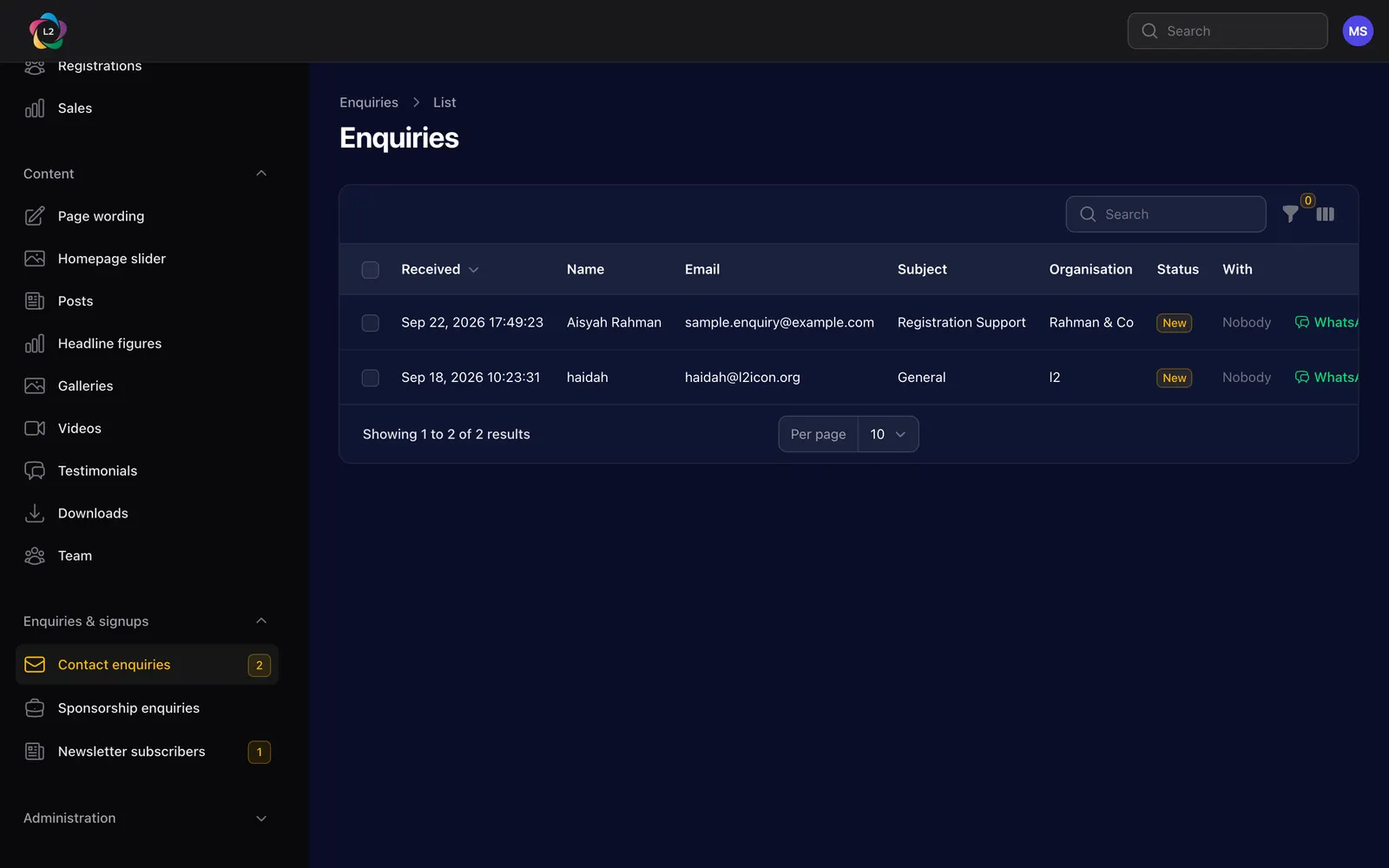
Open an enquiry to answer it.
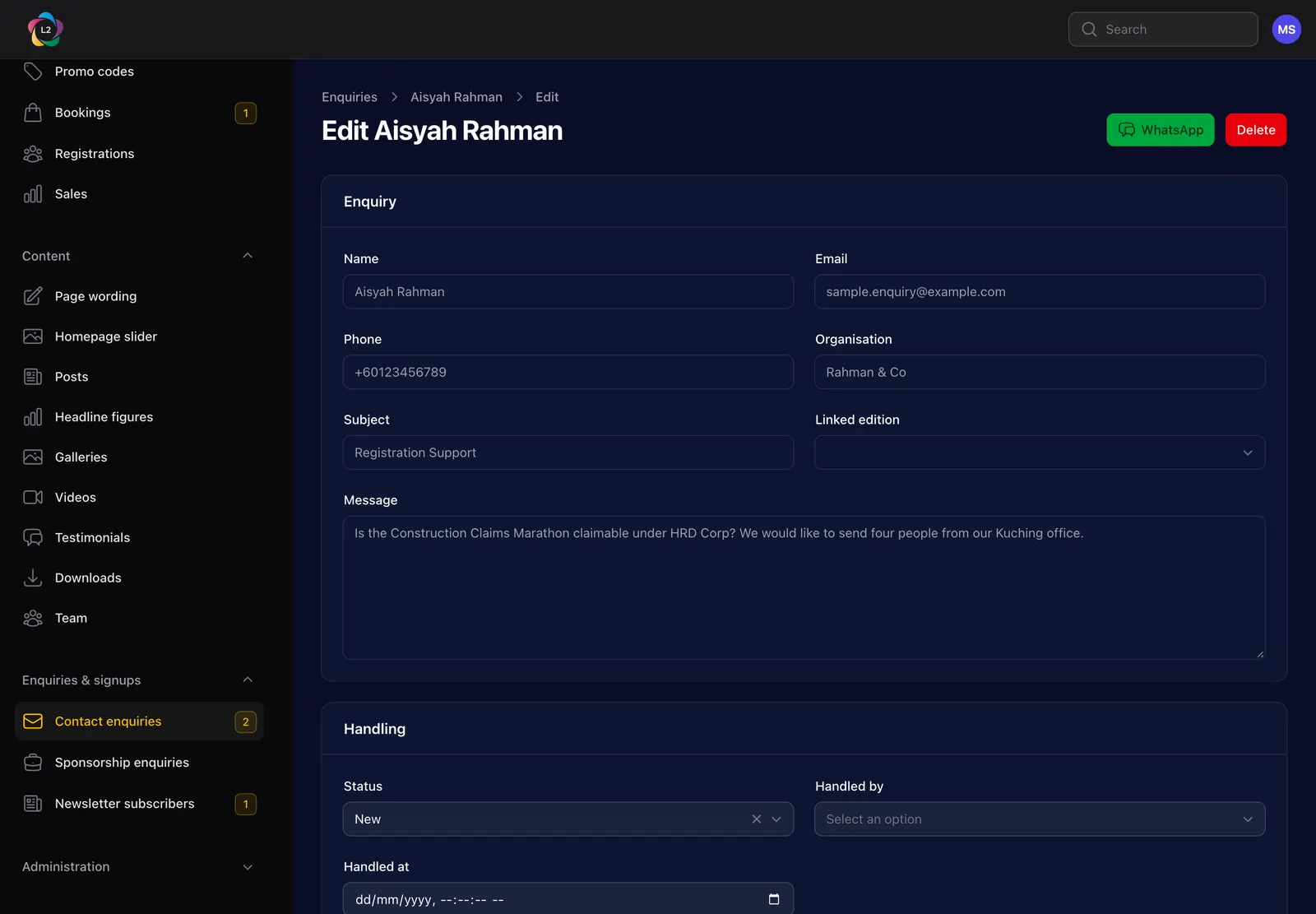
- Set Being handled and put your name against it so two people do not answer the same message.
- Write the reply, Save as draft as often as you like, and only press send when it is ready.
- Sending marks the enquiry Replied and keeps a copy of what was sent.
Sponsorship enquiries
The Partners page form is kept separately, with the track the enquirer chose — institutional, supporting organisation or sponsorship — so it reaches whoever handles partnerships.
Spam
The three forms — contact, partners and newsletter — turn away automated submissions without anybody noticing: a hidden box only a bot fills in, a check on how quickly the form was sent, and a filter for the random letters bots type ("sArtqOcWaeLSx"). A bot is thanked like anybody else and nothing is kept or emailed, so it has no reason to try again differently.
If a real person says they sent something that is not in the list, ask them to try once more, or to email reg@l2icon.org directly.
Newsletter subscribers
Everyone who signed up through the footer, with the date they confirmed. Sign-ups are double opt-in: the address only becomes a subscriber after the person clicks the link in the confirming email. Until then it shows as pending — that is waiting on them, not on us, and a pending address is never sent the newsletter. You can export the list, and remove anybody who asks.
WhatsApp questions about registering
Visitors can ask about registering on WhatsApp, straight to +60 11-5958 0078. A box headed Questions about registering? appears in three places:
- on every upcoming event page, under Register now beside the rates;
- while somebody chooses tickets, under the running total;
- on the Registration Hub, under the programmes that are open now.
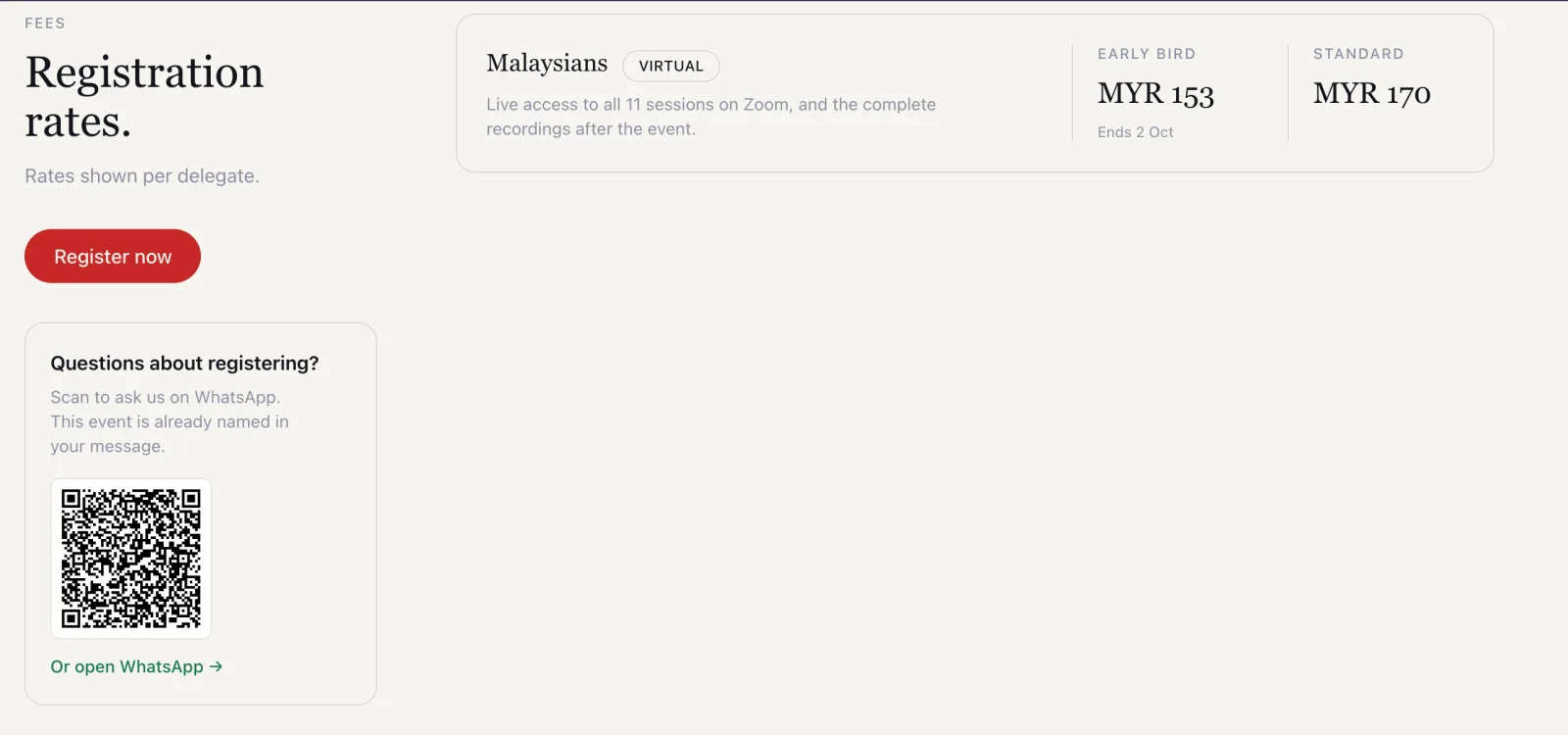
Nothing needs making for a new event. Each event gets its own link and QR code the moment it is published, and the message the visitor sends already names the event:
"Hi, I have a question about registering for International Construction Claims & ADR Marathon 2026."
So when the chat arrives on the business phone, you know which event it is about before you reply. There is no need to make a link on create.wa.link any more. From the Registration Hub, where no single event is in view, the message says "…registering for an L2 event."
The chats arrive in the WhatsApp Business app on that phone, not in the admin panel. Nothing is recorded on the website.
Wording one event differently
Almost every event is fine with the standard sentence. For one that is not — say, to point people at group bookings — open the event, go to its Registration tab, and fill in WhatsApp message under WhatsApp questions. Leave it empty to go back to the standard sentence.
The box does not appear on an event that has already run.
Settings
Administrators only. These are the settings the website runs on — change them deliberately.
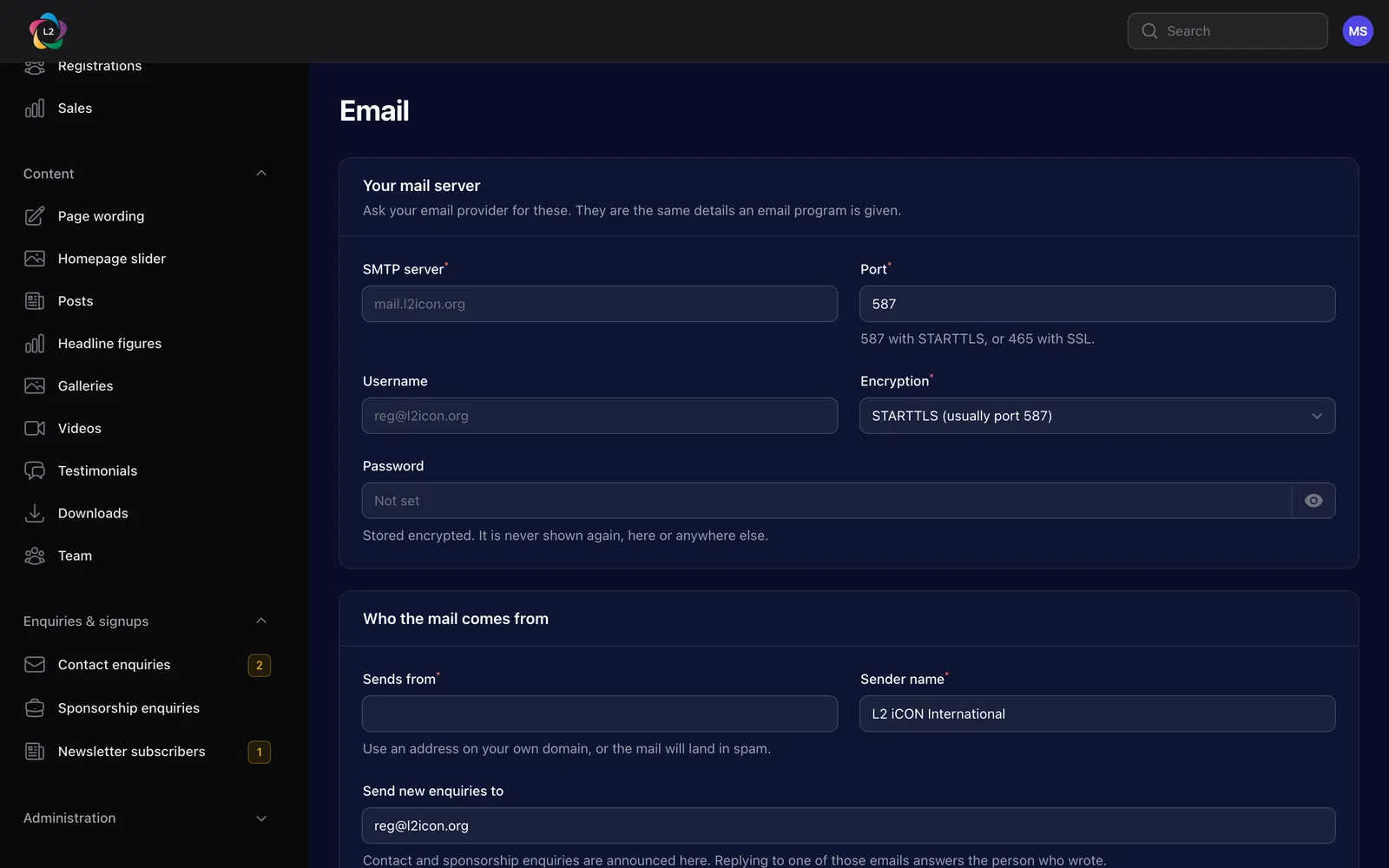
Send new enquiries to is the address that gets told when somebody writes through the website, and that receives the new booking and proof of payment emails. It is reg@l2icon.org today; change it here and the change takes effect immediately.
Mail is sent from our own server so that it passes the checks that keep it out of spam. A wrong setting here stops every email on the site, quietly.
Payments
Five tabs, and a Status panel above them that says in four lines what is switched on right now. Read that first — it is the only part of this page worth looking at when you have not come to change something.
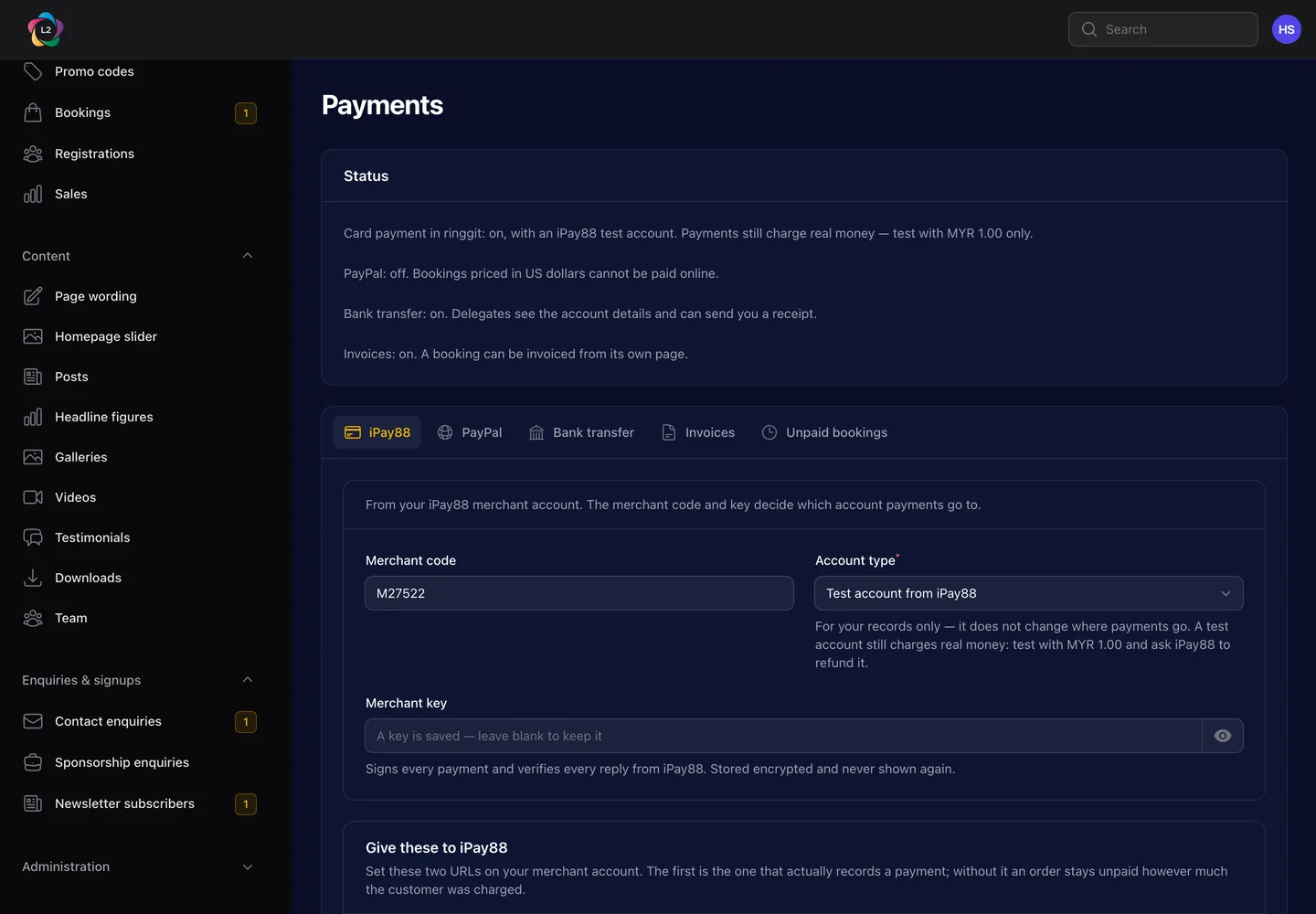
| Tab | What it holds |
|---|---|
| iPay88 | The merchant code and key for card and online banking in ringgit, and the two URLs to register with iPay88. |
| PayPal | The client ID, secret and webhook ID for payments in US dollars, and the webhook URL to register with PayPal. |
| Bank transfer | The account delegates are asked to transfer to. Leave it blank to switch bank transfer off. |
| Invoices | The company details an invoice is issued under. |
| Unpaid bookings | How long an unpaid booking holds its seats before they go back on sale. |
PayPal
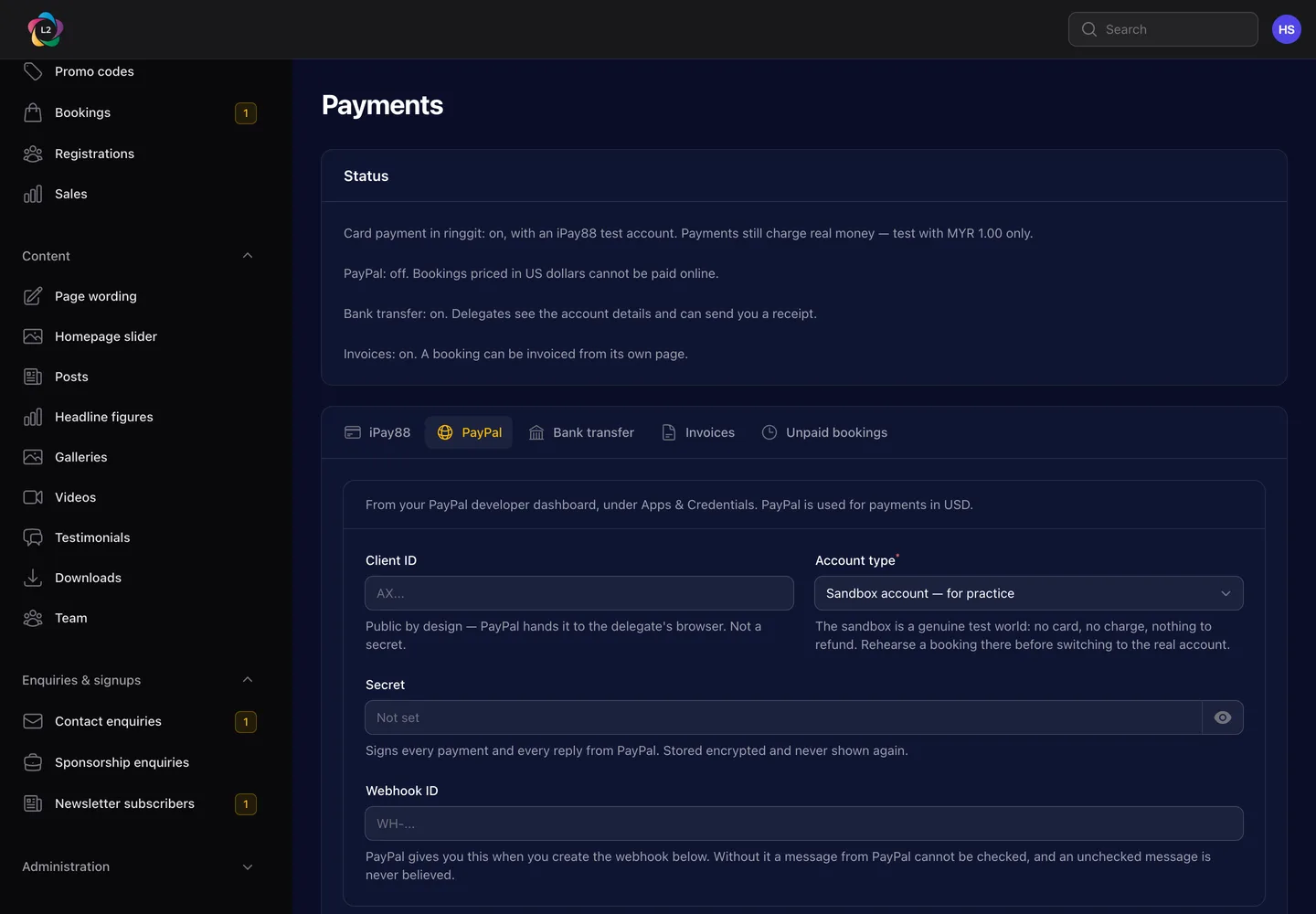
Account type is a real switch here, unlike the one on the iPay88 tab. PayPal's sandbox is a separate world: nothing is charged, no card is needed, and no real booking can be paid there. It is for rehearsing. L2’s own account takes real money.
The secret field says a secret is saved and to leave it blank to keep it — so leaving it blank keeps the sandbox secret, and a live client ID paired with a sandbox secret is refused by PayPal outright. The webhook does not carry over either; a live account needs a webhook created on its own side, with its own ID.
Invoices
The company details are what an invoice is issued under. Without a registered name, company number and address, Issue invoice refuses to produce a document — a finance office will not pay against one that lacks them.
Branding
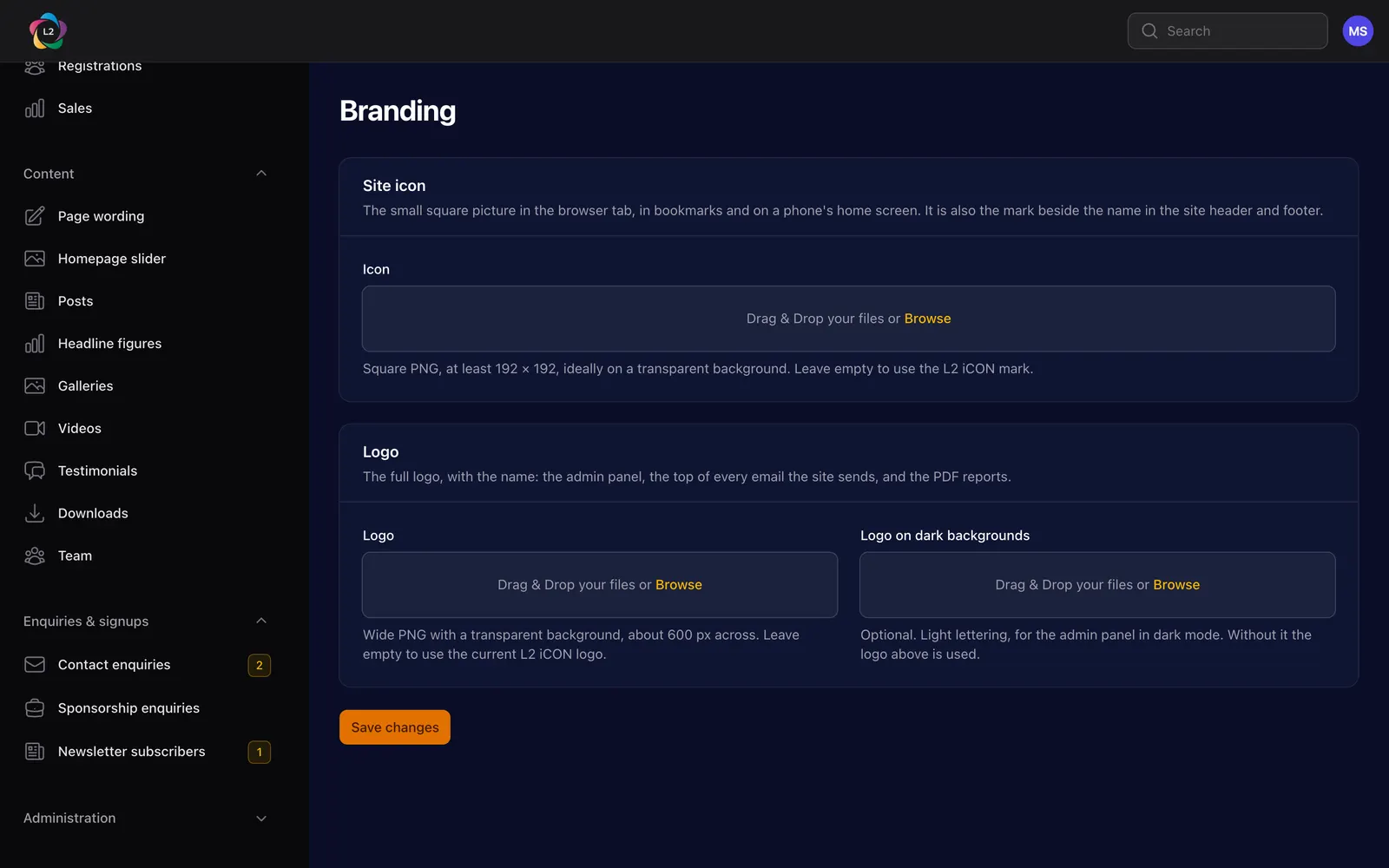
Three images: the site icon (square, for the browser tab and a phone's home screen), the logo, and the logo for dark backgrounds — the navy header would swallow a dark mark, so a light version is kept for it.
Administration › WhatsApp holds the one number every Questions about registering? box sends people to — +60 11-5958 0078 today. It can be typed any way you like: +60 11-5958 0078 and 011-5958 0078 both work.
- Change it here and every event's link and QR code changes with it, on the website straight away.
- Try the link opens the real link, so you can check it on your own phone before telling anybody.
- Empty the box and save, and the WhatsApp box disappears from the whole site until a number goes back in.
How the box looks and where it sits is in Enquiries and the newsletter.
Staff accounts
Administration › Staff & users, then New user. Give the name, their email and one role.
- Leave the password empty. They are emailed "Your L2 staff account" with a link to choose their own, so nobody else ever knows it. The link works for an hour.
- For somebody who needs to be in straight away, press ✦ beside the password box to generate a strong one, and the eye to read it. No email is sent then, so pass it on yourself.
- If they missed the hour, open their account and press Send set-password link for a new one. There is no need to make the account again.
The first time they sign in, they set up the six-digit code from an authenticator app. Remove the role of anybody who leaves — the account then has no way into the panel at all.
Questions we get asked
My event is not on the website.
Check the status on the Details tab. A Draft event is invisible to everybody but us. If it is published and still missing from the homepage, the homepage only lists events that have not finished yet — a past event lives in the archive instead.
The fees table is empty on the event page.
A ticket only appears once it has a price. Open Tickets on the event, press Set prices and add at least one rate.
A speaker is in the agenda but not on the speaker wall.
They should be added automatically when the itinerary is saved. If one is missing, open the Speaker wall tab and use Add someone the site already has — the record exists, it just is not linked to this event.
Somebody changed their job title. Do I fix it on every event?
No. A speaker is one record for the whole site: edit them once under People & places › Speakers and every event they have ever spoken at shows the new title.
A delegate says they never got their confirmation.
Ask them to check spam first — a first email from a new address often lands there. Then open the booking. If they are the person who booked, press Resend email. If they are one of the other delegates, check their email is spelled right in the delegates list, correct it if not, and press Send pass beside them. Passes only go out once the booking is paid.
Somebody wants to send a colleague instead.
Open Ticketing › Registrations, find the delegate and transfer the seat. Do it before the event's name-change deadline; after that the badge and the delegate list are already printed.
I uploaded a logo and the page still shows the organisation's name.
The logo lives on the organisation record, not on the event. Upload it once under People & places › Organisations, or with Add one that is new from the event, and every event that credits them picks it up.
Can I undo a delete?
Events can be restored — deleting one hides it rather than destroying it, and an administrator can bring it back. Most other things cannot, so read the confirmation before pressing the button.
I have lost the phone with my authenticator on it.
Use one of the recovery codes you saved when you set it up — press Use a recovery code instead on the sign-in screen. Each code works once. If you no longer have them either, an administrator cannot help; ask SawangVille, which means an engineer clearing the second factor from your account by hand.
A delegate says they cannot pay in dollars.
They are on a ringgit ticket. Check which ticket they chose on the fee table — the currency belongs to the ticket, not to the delegate, and the booking page offers only the way that fits it. If the event should have a dollar ticket and does not, add one under Tickets on the event and set its currency to USD.
Somebody chose two tickets and the site will not let them continue.
If the two are priced in different currencies, that is deliberate: one booking is one payment and a payment has one currency. They book the ringgit tickets and the dollar tickets separately, as two bookings.
Where do I actually send a refund back?
Wherever it came in — PayPal, the iPay88 portal, or the bank. The refund screen on the booking names which, and quotes the payment reference to search for. Send the money first, then record it here.
The dashboard says a payment is unconfirmed.
Somebody started a card or PayPal payment and the gateway has not said what happened, an hour later. Most resolve themselves — the site asks the gateway again every fifteen minutes, and closes an attempt nobody completed. Open the booking to see the attempts. If money left the delegate's account and the booking still says unpaid after a few hours, tell SawangVille with the booking reference.
Something is broken, or I am not sure.
Write it down with the page you were on and what you pressed, and send it to SawangVille. A screenshot of the whole window, address bar included, saves a round of questions.
The WhatsApp box is not showing on an event.
Three things hide it. The event has already run; the Registration fee table block is switched off in What shows on the page, since the box sits beside the rates; or the number in Administration › WhatsApp is empty, which hides it everywhere.
Somebody's WhatsApp message came through with the wrong event name.
The message uses the event's title as it is on the Details tab, or the WhatsApp message on its Registration tab if somebody filled one in. Correct whichever is wrong; the link changes the moment you save.
Emails from the website are going to spam.
Mark one as Not spam, and add webmaster@l2icon.org (the website) and no-reply@adaptispay.com (iPay88's payment emails) to the allowed senders in the email filter. Our mail is filtered on the way in, and it learns from what people mark.
I saved a change but the website does not show it.
Check the address bar: you may be signed in to the test copy at l2icon.sawangville.dev rather than www.l2icon.org. If you are on the real one, reload the public page with Ctrl+F5 (Windows) or Cmd+Shift+R (Mac).
A new colleague never used the email to set their password.
The link lasts an hour. Open their account in Administration › Staff & users and press Send set-password link, or ask them to press Forgot password? on the sign-in page. Either way, do not make the account again.